Software Update
The Software Update tile manages EZPlayer releases on this machine. These settings are stored on the player PC, not in the show folder.
The pane shows the installed version. Updates come from official EZPlayer releases on GitHub, either automatically or by user request, depending on the update mode.
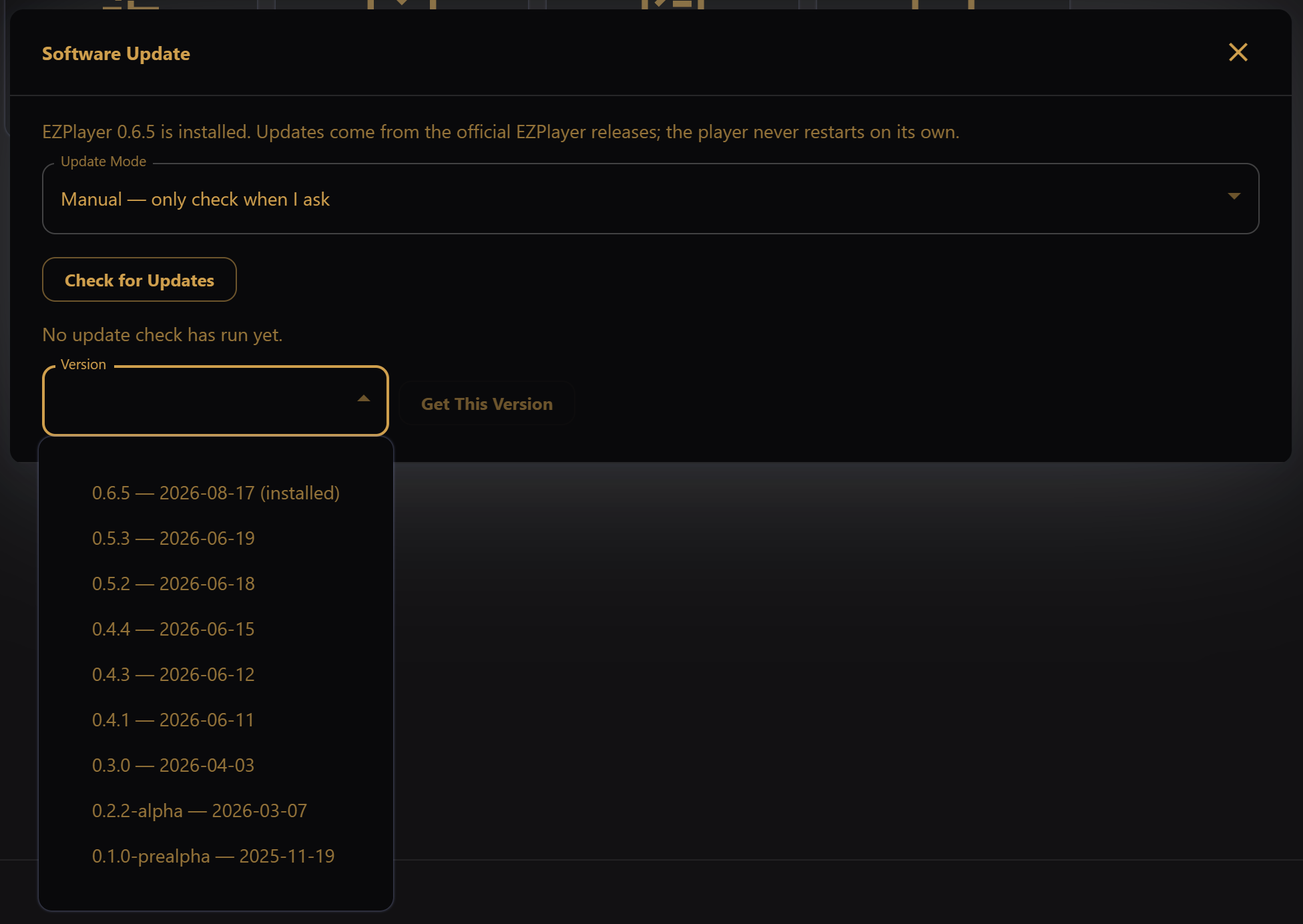
Update Mode
- Check automatically and remind me (default) — about ten seconds after launch, EZPlayer looks for a newer release. If the PC then sits idle for at least five minutes with no show schedule running, EZPlayer may download the update in the background. A finished download is queued to install the next time you quit.
- Manual — only check when I ask — no startup check, idle download, or prompts. Use Check for Updates on this pane to initiate all updates.
Changing the mode takes effect without restarting. Engaging "Manual" mode stops any downloads that were automatically initiated.
Automatic checks and downloads run only in the installed desktop app.
Check for Updates
Check for Updates asks whether a newer version exists. While a check or download is running, the button is disabled. The pane then shows:
- No update check has run yet.
- Checking for updates…
- You're up to date.
- Version x.y.z is available. — Download x.y.z fetches it. Progress (percent and speed) appears on this pane.
- Version x.y.z is downloaded and ready to install.
- An error if the check or download failed (offline, blocked network, and so on).
Skip This Version
When a version is available, Skip This Version keeps the current install. There are no further notifications about the availability of the skipped release, and it is not downloaded. Download still works if you change your mind.
Skipped versions are listed at the bottom of the pane. Clear removes the skip marker and restores the version's eligibility for automatic download.
Manual Version Selection
In "Manual" mode, the "Check for Updates" button retrieves a list of all versions available, including old versions and betas. Selecting one and pressing "Get This Version" initiates a download. Once the download is complete, the version can be installed.
Install & Restart / Install on Quit
These buttons appear after a version has been downloaded:
- Install & Restart quits EZPlayer, applies the update, and relaunches.
- Install on Quit leaves the show running. The pane then says the update will install when you quit.
A completed download is already queued for install-on-quit, including one fetched in the background. Use Install & Restart only when you want it applied immediately.
If a show schedule is active, Install & Restart opens Schedule Is Running. Restarting stops playback until EZPlayer comes back. Choose Install on Quit to wait, or Restart Anyway to apply it now.
Locked-down or offline machines
Launch with --no-update-check to skip the startup check and idle download
without opening this pane. Check for Updates here still works. See
CLI → Updates.