Files
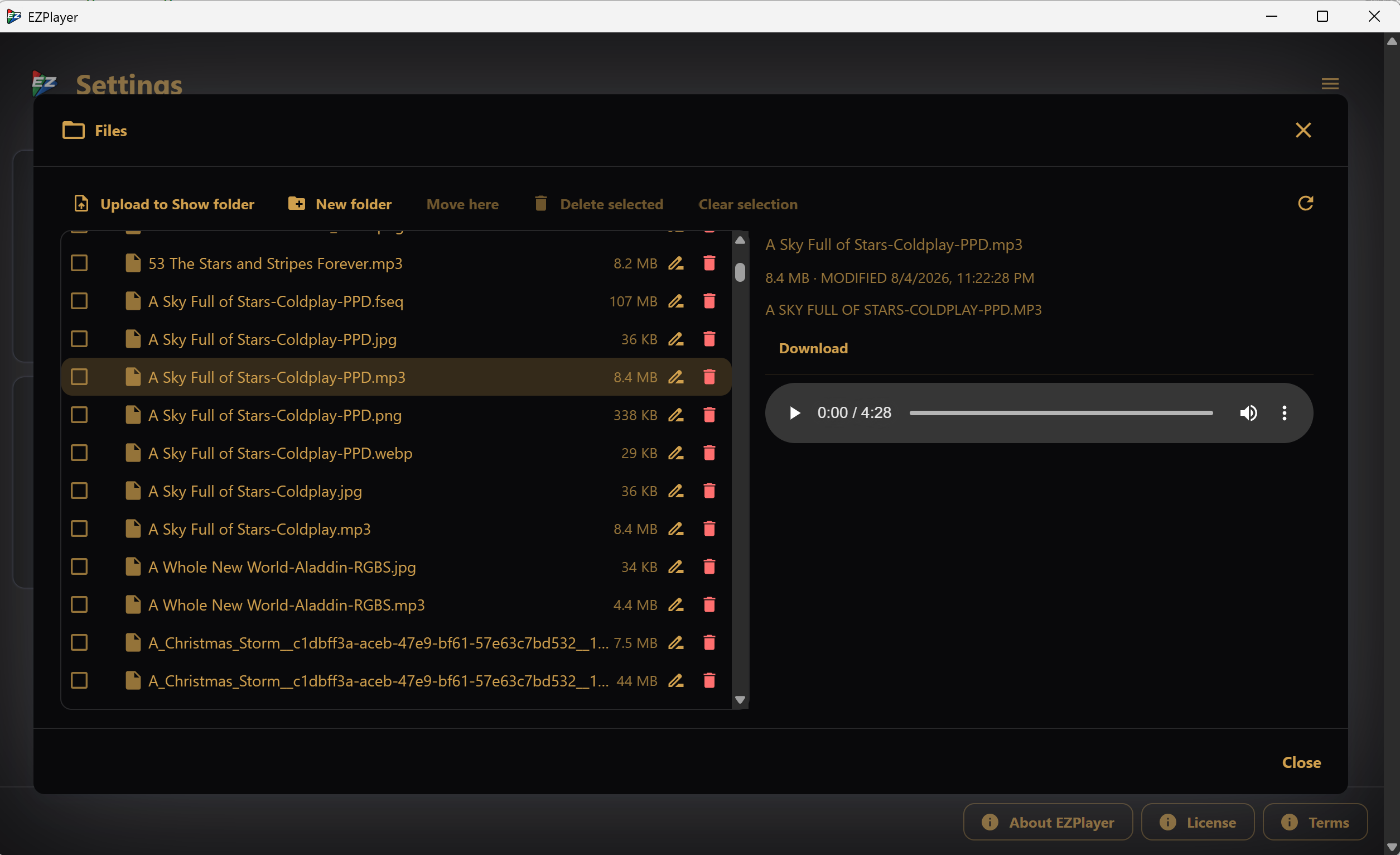
Browses the show folder on the machine running EZPlayer. Useful for getting a file onto the player without walking over to it.
This tile only exists if you turned it on
The Files tile appears only after someone runs a CLI command on the player machine:
ezplayer files --show-folder "D:\Shows\MyShow" --password-file secret.txt
On Windows, to enter the password interactively, run ezplayer.cmd (installed next
to EZPlayer.exe) rather than the .exe itself.
Alternatively, supply the password with --password-file or --password.
See the CLI reference.
If not enabled, the feature is completely inaccessible. See
Remote access in
the CLI reference for the full command and for --clear.
The file manager and shell have separate passwords. Passwords are saved per show folder. Switching the player to a different show folder closes any open session, since it was authorized against the previous show's password.
What you can do
- Browse the folder tree. Sizes and modified times are shown on the right.
- Upload one or many files — click Upload, or drag them onto the tree. They land in the folder shown next to "Into:", which follows whatever you have selected. Large files are sent in chunks with a progress bar.
- Download the selected file to your computer.
- Rename and Delete a single item from the buttons at the right of its own row. Delete asks for confirmation first. Rows for files xLights requires show these buttons greyed out.
- Bulk actions use the tick-boxes: check several items, then Delete selected or, to move them, click the destination folder and press Move here. The toolbar buttons only ever act on what is ticked; the row buttons only ever act on that row.
- Preview without downloading: images, audio (with a player), and text-ish files including JSON, XML, CSV and logs. Other types just show their details.
What you cannot do
- Leave the show folder. Every path is resolved and checked against the show folder.
- See
.ezplayer/. That is the player's own settings directory. - Touch
xlights_rgbeffects.xmlorxlights_networks.xml. Those are xLights' own files and the show does not work without them; they are shown with a lock and cannot be renamed, moved, deleted or overwritten. - Silently overwrite on rename or move.