Registering
Registration links an EZPlayer show folder to your EZRGB account. Once connected, the player can:
- Download your sequences from the cloud
- Sync your layout with the cloud service
- Appear under EZPlayer on your EZRGB account and offer a Remote Control Link on the Cloud screen, so you can open the full player UI over the internet
- Set up a viewer page.
You only need to register once per show folder. If you reopen a folder that is already registered, EZPlayer picks up where you left off.
First-time setup (cloud-managed show)
If you are starting fresh with EZRGB Cloud:
- On the welcome screen, choose Connect to EZRGB Cloud.
- Pick a show folder — an empty folder works well for a new cloud-managed show.
- The registration screen appears with a QR code and a link.
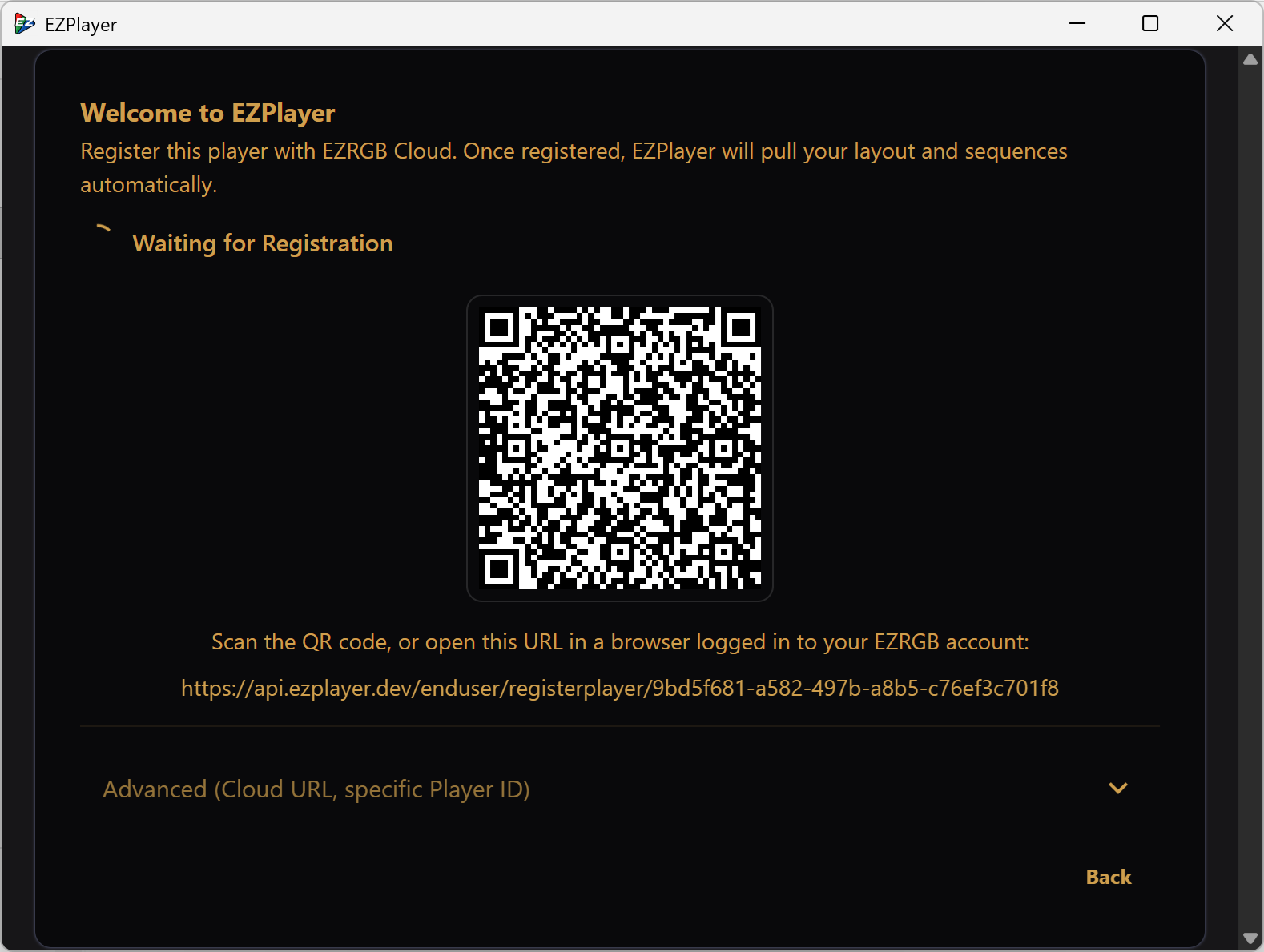
Complete registration in your browser (see Completing registration below) or on another device by scanning the QR code. When EZRGB confirms the player, EZPlayer pulls your layout automatically and then opens the main app.
For the full walkthrough from first launch through scheduling, see Getting Started (Cloud).
Registering later
If you skipped cloud setup on first launch — or you opened an existing xLights show folder and now want remote control or EZRGB sequence sync — register at any time from either:
- The Cloud screen in the sidebar — click Register Player, or
- Settings → Cloud — opens the same registration dialog.
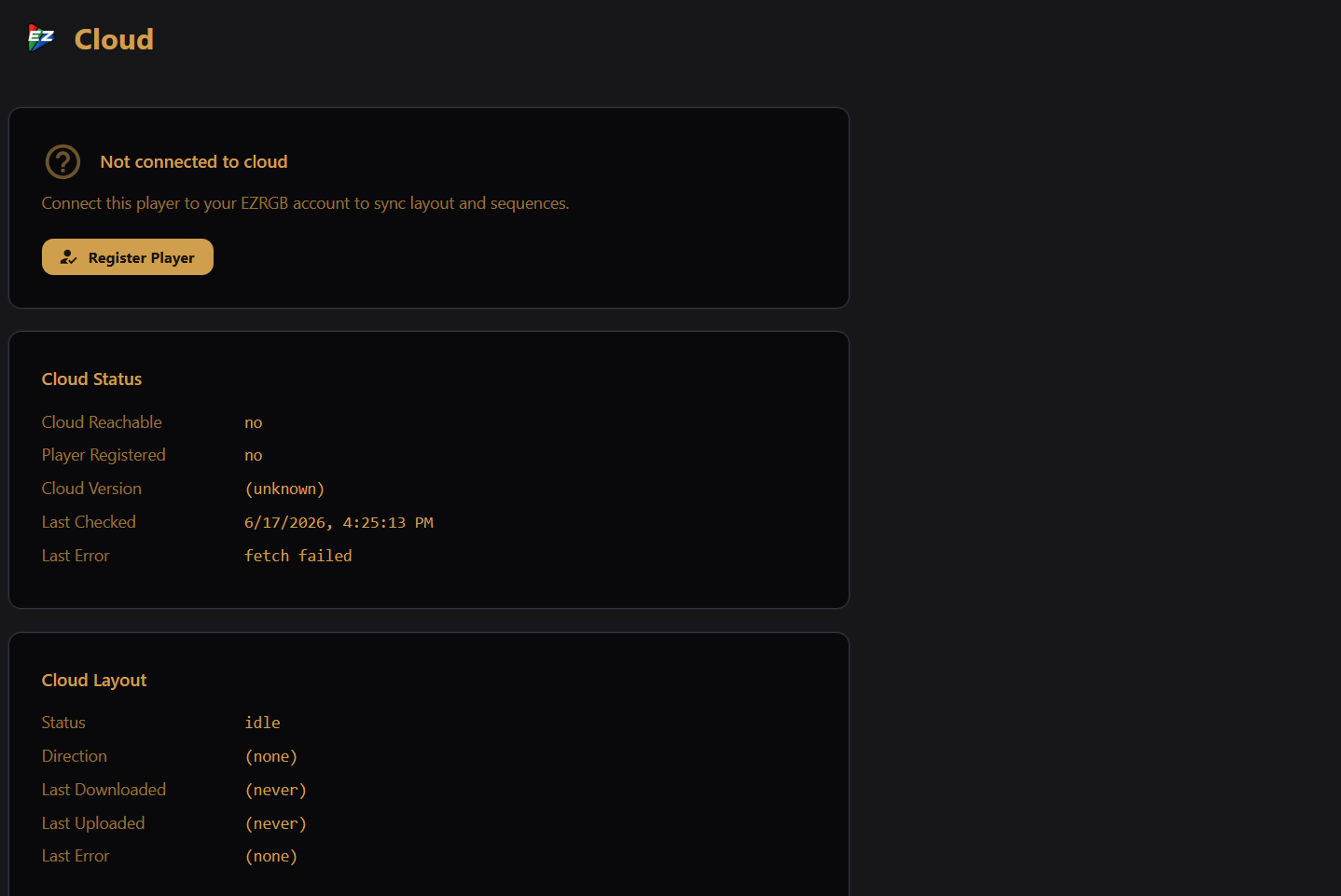
The QR code and link work the same way as on first launch. On a mid-session register, layout and sequences sync on the next cloud poll (or immediately if you click Sync Content Now / Sync Layout + Content on the Cloud screen).
You can also start a fresh cloud-managed folder later from Settings → Show Folder → Download Cloud Show, then register from the Cloud screen.
Completing registration
While waiting, EZPlayer shows Waiting for Registration with a spinner. Finish associating the player on the EZRGB website:
- Scan the QR code with a phone or tablet that can open a browser, or
- Open the registration link — click it in EZPlayer (desktop app) or paste it into a browser.
The link opens the EZRGB claim page for this player. Log in to your EZRGB account if prompted, then follow the site prompts to claim the player.
When registration succeeds:
- In EZPlayer, the status changes to Player ID Registered (green checkmark). EZPlayer detects this automatically — you do not need to restart the app.
- On EZRGB, the player appears under EZPlayer on your account screen. From there, click Manage Player to open the full remote player UI in the browser (open it in a new tab for more screen space).
- The Cloud screen shows a Remote Control Link (QR and URL) that opens the same remote UI. Read Remote Control Link before sharing it.
If cloud is paused
If the screen shows Cloud Paused, registration cannot complete until cloud activity is running again. Click Resume Cloud, then use the QR code or link as usual. Your player ID and settings are kept while paused.
After registration
What happens next depends on how your show folder is set up:
- Cloud-managed show — EZPlayer downloads your layout from EZRGB, then keeps sequences in sync. Watch progress on the Cloud screen.
- xLights show folder — your local layout stays in charge; the cloud mainly syncs sequences and other content. You can push layout updates to the cloud from the Cloud screen (Push Layout), or switch to cloud-managed later.
From the website, use Manage Player for remote status and control, or manage layout and sequences on EZRGB and let them sync down. See Using Full Cloud Control.
Troubleshooting
The status stays on "Waiting for Registration"
- Make sure you finished the claim flow on EZRGB while logged into the correct account.
- Confirm the player has internet access. If the Cloud screen shows Cloud paused, click Resume Cloud.
- Try opening the registration link again in a fresh browser tab.
You need to connect a different EZRGB account or replace this player
- On the Cloud screen, use Disconnect to clear the current registration, then register again with a new QR code.
- To reuse a player that is already registered in the cloud, paste its Player ID under Advanced in the registration dialog. See Cloud settings for details.
You want to change how often content syncs, pause cloud, or point at a different cloud server
- See Cloud settings for polling schedule, pause/resume, and other advanced options.
You shared the remote-control link and need to revoke it
- On the Cloud screen, click Change Player ID. Old links and QR codes stop working and you do not re-register. See Cloud Configuration.