Songs
In EZPlayer, a song is a playable sequence — a light show file (.fseq)
plus metadata (title, artist, tags, etc.) and optional audio and artwork. Songs
are the building blocks for playlists,
schedules, the jukebox, and remote
control.
The .fseq file is required. Audio is optional for silent animation sequences;
musical songs should include a matching audio (such as .mp3). Duration is taken
from the file header and updated when you add or replace a sequence file.
The Songs screen
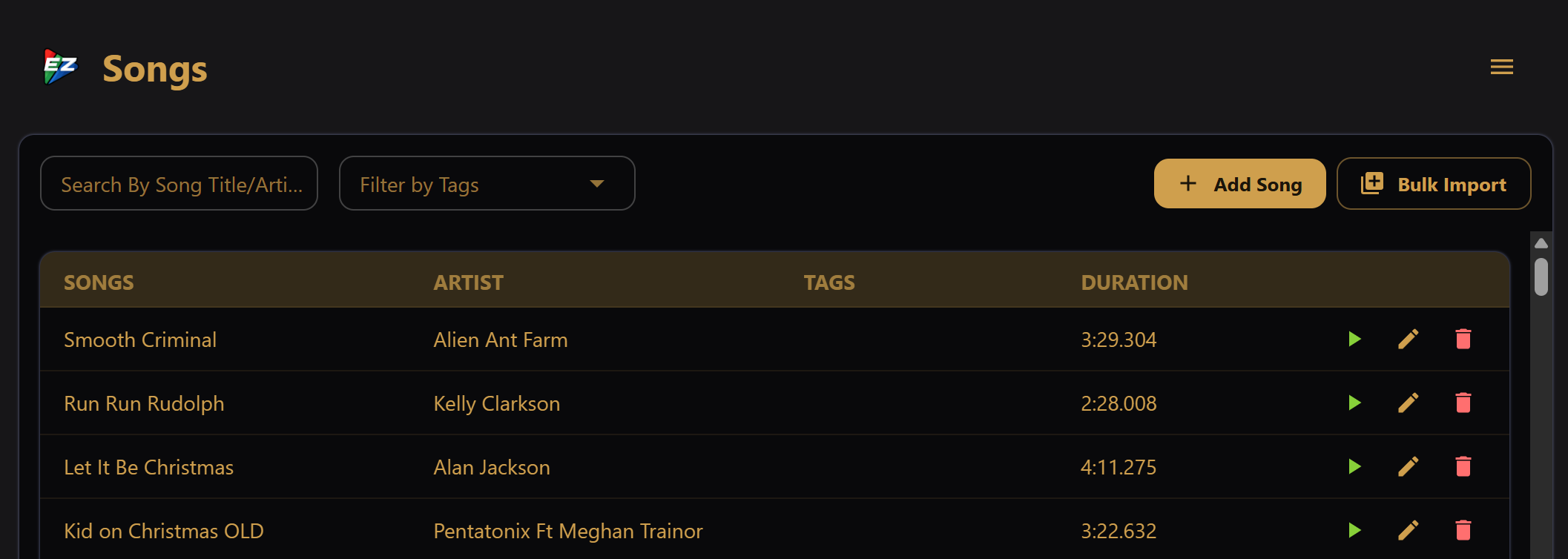
Open Songs from the main navigation. The table shows title, artist (vendor in parentheses when set), tags, and duration. Use search and Filter by Tags to narrow a large library.
Double-click a row (or use the edit icon) to open Edit Song Details, or click Add Song. The row play button starts that song immediately.
Song management (add, edit, bulk import, delete, replace files) works in the desktop app and the LAN / cloud UI. The desktop app uses native file pickers; the LAN and cloud UIs upload from the browser or choose a file already in the player's show folder. The kiosk page has no song management — see Local web interface.
Adding a song
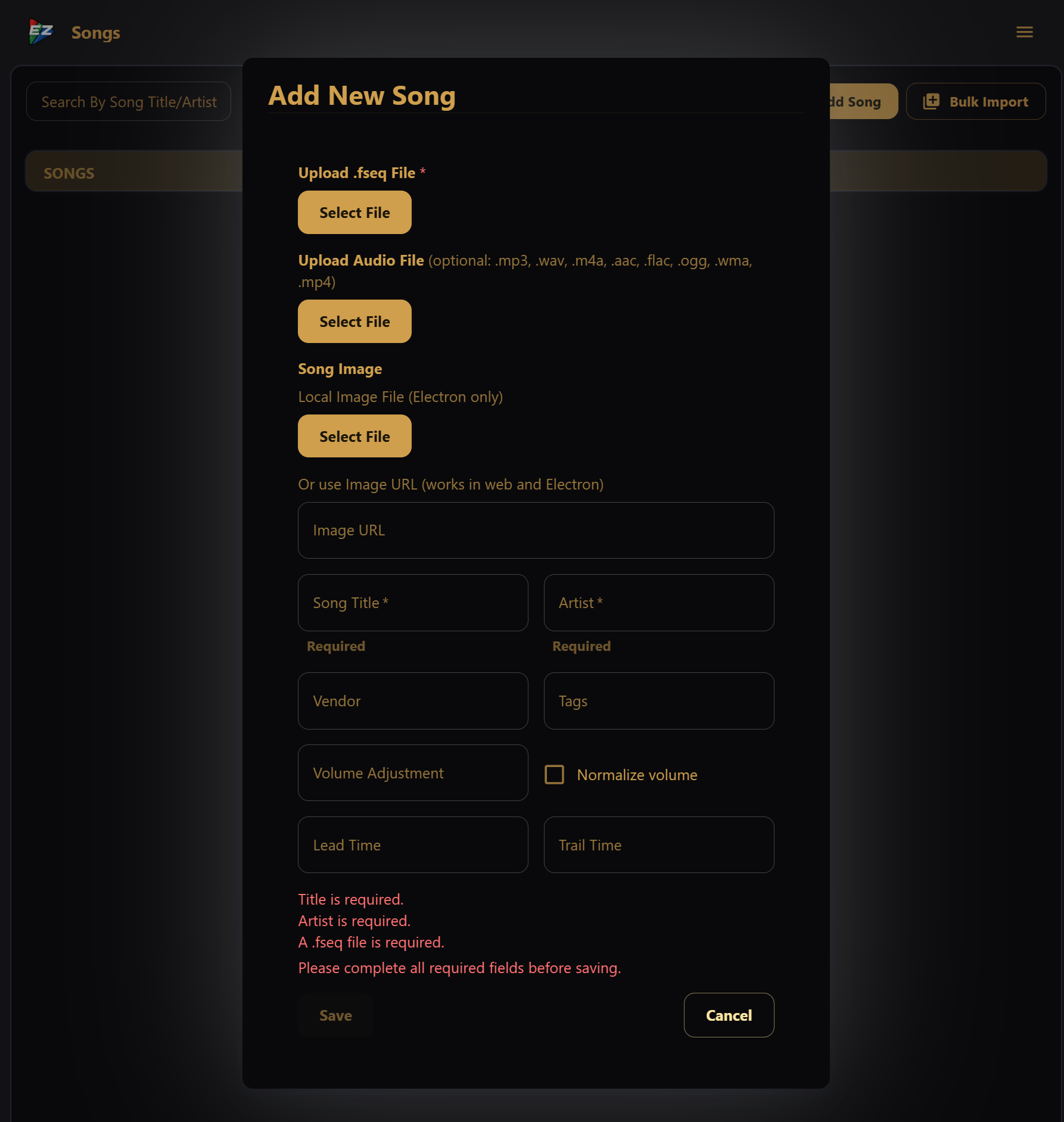
- Open Songs and click Add Song.
- Select a
.fseqfile (required). - Optionally select a
.mp3or other audio and an image for the jukebox and song list. - Fill in title and artist (required), then optional fields — vendor, tags, lead/trail time, volume adjustment — and click Save.
Automatic file matching
Choosing an FSEQ triggers auto-detect: EZPlayer reads duration (and any embedded metadata) from the header, then looks for matching audio and artwork next to the FSEQ, in the optional Media Folder, and in the show folder. If the audio has ID3 tags, title, artist, and album art are filled in when those fields are still empty.
If auto-detect misses something, pick the remaining files manually. You can also use an image URL instead of a local image file.
Tips for xLights users
Point EZPlayer at the same show folder you use in xLights. Matching names side by side usually mean a single FSEQ selection is enough. If MP3s live in a separate media directory, set that path as the Media Folder.
Bulk import
Use Bulk Import to register many sequences at once.
Desktop app
- Open Songs and click Bulk Import.
- Choose Select .fseq files… or Select folder….
- Review the Bulk Import Summary for successes and failures.
LAN / cloud UI
Over the network, Bulk Import registers .fseq files already in the player's
show folder (via xLights, cloud sync, or the
file manager) — nothing is uploaded.
- Open Songs and click Bulk Import.
- Confirm which new sequences to import (already-imported ones are marked).
- Review the Bulk Import Summary.
Unlike single Add Song, bulk import requires a matching companion audio file for each FSEQ (exact name match next to the FSEQ or in the Media Folder). One failure does not stop the rest of the batch. FSEQs that already have a song entry are skipped. If audio is missing, set a Media Folder and retry.
Editing and deleting
In Edit Song Details you can change title, artist, vendor, files, image URL, lead/trail time, volume adjustment, and tags. Title and artist remain required. Unrelated edits do not interrupt a song that is currently playing.
Tags are free-form labels (for example christmas or nojukebox). They
appear in the Songs table and drive jukebox filtering — see
Jukebox settings.
Volume adjustment (−100 to +100) balances songs mastered at different levels; show-wide loudness is under Volume.
Normalize volume If checked, the song volume is normalized to be consistent in overall volume level and to play well on FM radio, outdoor speakers, phones, etc.
Lead time and trail time (seconds, −5.0 to 5.0) trim or extend the sequence. You might want to do this if there is too much, or not enough, "dead time" at the start or end of the sequences. Negative values remove sequence material, positive values add "dead time".
Click the delete icon and confirm to remove a song from the catalog and from every playlist that referenced it. Deletion is a soft delete: the record is hidden, but files on disk are not removed. Add the sequence again if you need it back.
Only playable songs appear in the Songs list, jukebox, playlist editor, and
scheduler. Sequences that are disabled in the cloud, or are missing a real .fseq
path, are not displayed.
Cloud-delivered songs
When EZPlayer is registered with EZRGB Cloud, sequences can arrive from the cloud into your show folder. Placeholder song records may exist while a sequence is still rendering; the song appears in the Songs list only when the FSEQ is ready.
See Getting Started (Cloud) and Getting Sequences from EZRGB.
Next steps
- Set a Media Folder if companion audio lives outside the show folder
- Play a song from the Jukebox, and watch the Show View
- Add songs to Playlists and Schedules