Show View
The Show View screen renders your show live on a model of your display. As the show plays, the pixels light up here as they do on your real props. This is the quickest way to check that your show data, including any overlays, looks right. (You will still need to go outside to see if the connections are all correct, etc., but if things do not look right outside, you might check the preview first.)
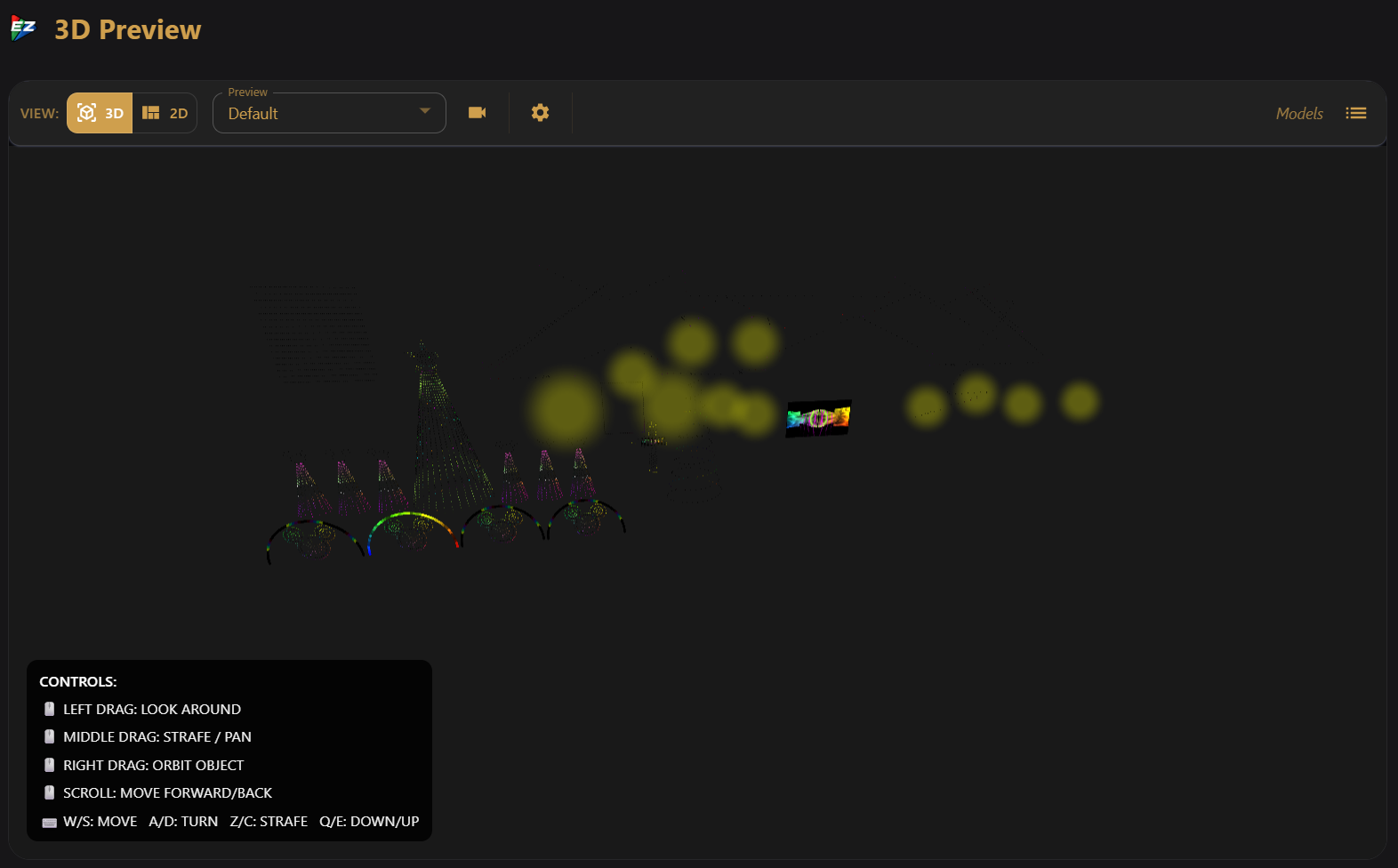
The Show View is a visual aid. It shows what the sequence sends to your models. If things are different in the real world, it indicates that the models in your show do not match the real ones, are not cabled as modelled, etc.
3D vs 2D
Use the View toggle in the top-left to switch between 2D and 3D:
| Mode | What it shows |
|---|---|
| 3D | Your models placed in 3D space, so you can fly around and see depth and angles |
| 2D | A flat, face-on view, for 2D displays |
Choosing what to preview
The Show View dropdown controls which models are shown:
- Default — the standard preview for your show.
- All Models — every model in the layout.
- Layout groups — if your show defines preview groups, each one appears here so you can focus on a single area (for example, just the roofline or a mega tree).
Moving the camera
3D view
- Left drag — look around
- Right drag — orbit the right-clicked object
- Middle drag — strafe / pan
- Scroll — move forward and back
- Keyboard —
W/Smove,A/Dturn,Z/Cstrafe,Q/Edown/up
If you prefer simpler orbit-style controls (handy on a trackpad or touchscreen), turn on Always use orbit controls in UI settings.
If your show was designed with saved camera viewpoints, a camera icon appears in 3D mode — click it to jump to one of those saved angles.
2D view
- Left drag or Middle drag — pan
- Right drag or Scroll — zoom
Settings
Click the gear icon to open Show View Settings:
- Pixel Size — make the pixels larger or smaller so the preview reads well.
- Brightness — adjust how bright any background images or models are, dimming it can help the pixels stand out.
- Reset View — reset the camera to its original position.
- Set as Default View — remember the current camera angle, view mode, and slider settings as the starting point next time.
Model library
Click the list icon on the right to open the Model Library. From here you can search for a model by name and click it to highlight it in the preview — useful for finding a specific prop in a busy layout. Click it again to clear the highlight.
Audio in the LAN UI
When you open the Show View from the LAN UI in a browser, an audio button lets you listen to the show's music alongside the visuals. (On the desktop app, audio plays through your normal output instead.)