Playlists
A playlist is an ordered list of songs. Playlists sit between your song library and the schedule: you group sequences into sets like "Christmas Favorites" or "Weeknight Show," then attach those sets to date and time windows.
The same playlist concept covers other uses: intro/outro lists, or a set of songs viewers may select.
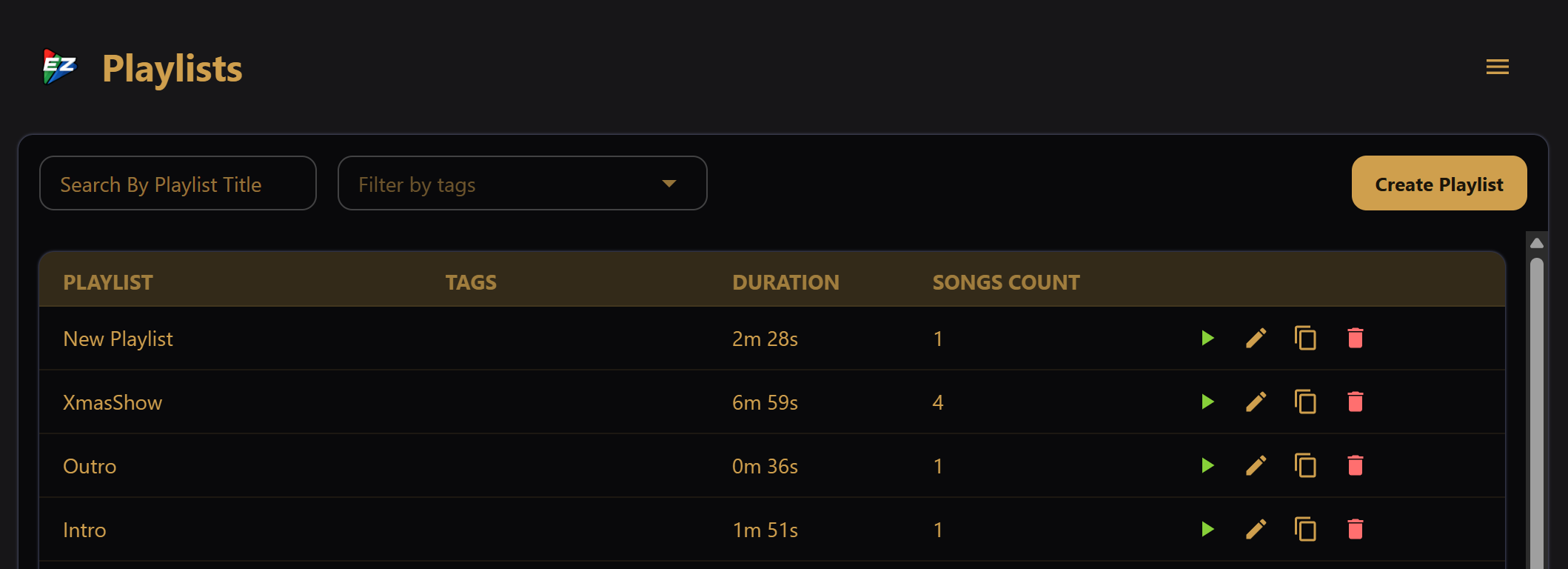
Open Playlists from the main navigation. The table shows name, tags, duration, and song count. Use search and Filter by tags to find playlists in a large library.
Double-click a row to open the editor. Row actions:
- Play — start the playlist immediately (once through)
- Edit — open the create/edit screen
- Clone — duplicate the playlist
- Delete — soft-delete after confirmation
Click Create Playlist to start a new one. Create, edit, clone, and delete are available in both the desktop app and the LAN UI.
Creating and editing a playlist
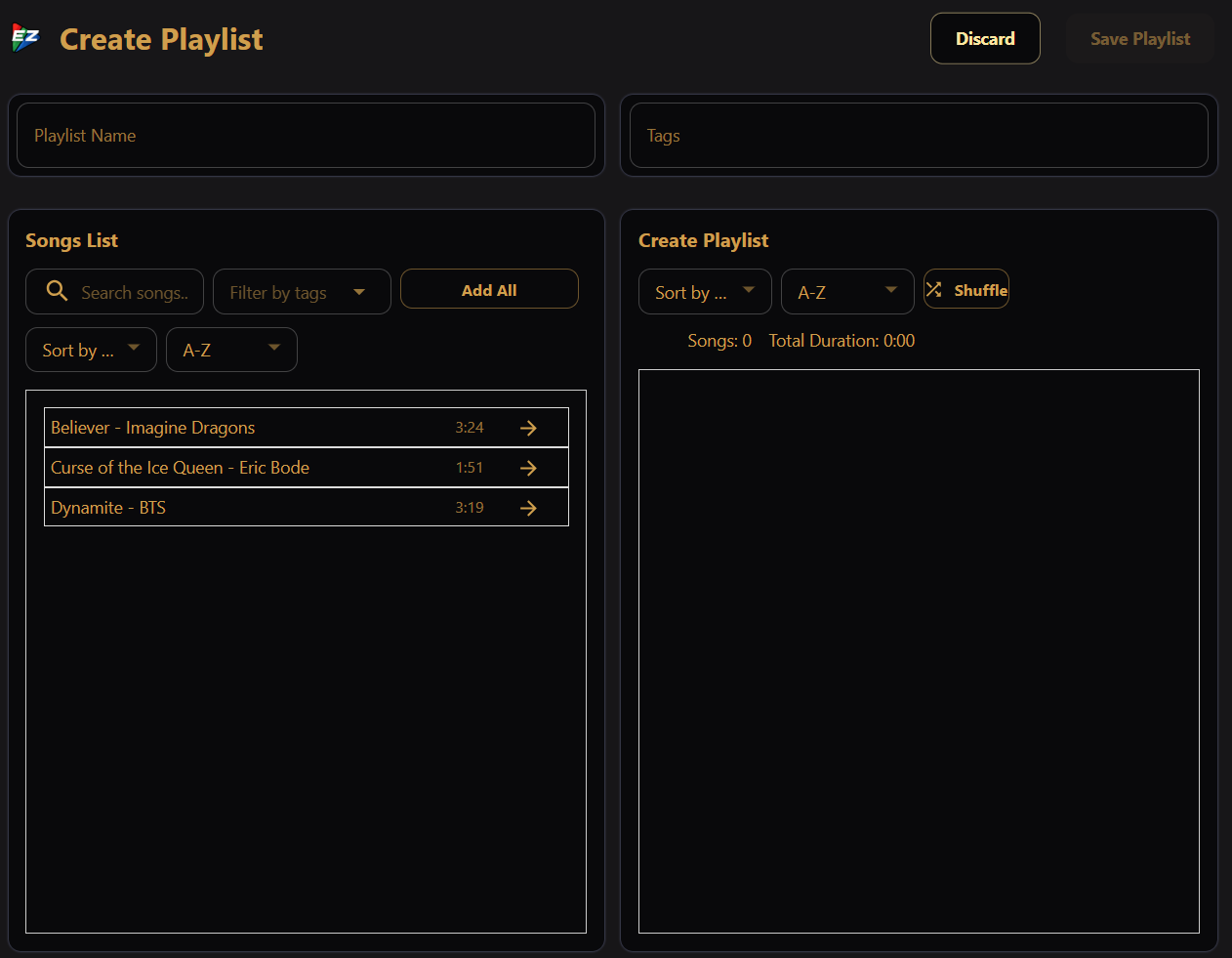
The create/edit screen has two panels:
Left: Songs List
Every playable song in your library (same filter as the Songs screen). Use search, tag filters, and sort by title or artist.
- Click -> on a song to add it, or use Add All for every song that matches the current filters and is not already in the playlist.
- Drag a song from this panel into the playlist on the right.
Songs already in the playlist are shaded.
Right: Playlist
The ordered list of songs that will play when this playlist runs.
- Drag to reorder, or drag back to the left / click remove to take a song out.
- Sort by title or artist, or Shuffle to randomize the saved order (separate from schedule-level shuffle at runtime).
At the top, set Playlist Name (required) and optional Tags. A playlist needs a name and at least one song before you can Save Playlist.
Discard returns to the list. Unsaved changes warn before you navigate away.
Deleting a playlist
Deletion is a soft delete: the playlist disappears from the UI, but songs in it are not deleted. Schedule entries that still reference it show a validation error until you pick another playlist or remove the entry.
Using playlists
Attach playlists to schedule windows as main, intro, or outro — see Simple Schedules and Complex Schedules.
When EZPlayer is registered with EZRGB Cloud, playlists can also be delivered or updated from the cloud — see Getting Started (Cloud).