Local Web Interface
EZPlayer runs a built-in HTTP server on your show PC so phones, tablets, and other computers on the same network can open a web UI — no remote desktop required. The same server also provides the REST Interface (HTTP API) for external integration.
This serves the LAN UI (also called the embedded or web interface). It mirrors most of what you can do in the desktop app, with a few differences noted below.
Opening the LAN UI
- Make sure EZPlayer is running on the show PC.
- Find the machine's local IP address or hostname on your network (for example
192.168.1.50). - Open a browser on another device and go to:
http://<show-pc-ip>:<port>
The default port is 3000, so a typical URL is http://192.168.1.50:3000.
You can use the same URL on the show PC itself (http://localhost:3000) to
test the web UI without a second device.
From the LAN UI you can monitor the Player screen, use the jukebox, edit playlists and schedules, and check Show Status.
Special LAN UI Features
On the web / LAN UI, a speaker icon in the header of the Jukebox and Show View pages toggles a live audio stream — useful for listening over the network when you are not at the show PC.
Desktop app vs LAN UI
| Capability | Desktop app | LAN UI |
|---|---|---|
| Player, Jukebox, Playlists, Schedule | Yes | Yes |
| Show Status (full detail) | Yes | Yes |
| Add / edit song files | Yes | Yes (upload / choose on player) |
| Bulk import songs | Yes | Yes (from files in show folder) |
| Port map and controller setup | Yes | Yes |
| Software Update | Yes | Yes |
| Choose / set media folder | Yes | Yes (type player path) |
| Choose show folder | Yes | No |
| Cloud registration dialog | Yes | Limited |
Show-folder selection stays on the show PC. Everything else — song management, playlist edits, schedule changes, jukebox requests, status, controller setup, and most settings — can be done from the LAN UI once the server is listening.
Kiosk (public display)
EZPlayer can also open a second, kiosk web server one port above the LAN UI port, 3001 by default. The kiosk has a simplified sidebar — jukebox and player only, no song/playlist/schedule management.
In the kiosk UI, the End and Abort playback buttons are hidden so visitors cannot stop the show. Skip and Play/Pause remain available.
HTTP Listener Status (desktop app)
On the desktop Electron app, open Show Status and scroll to the HTTP Listener Status card at the bottom. This panel tells you whether the LAN server is up and which port to use when connecting from other devices.
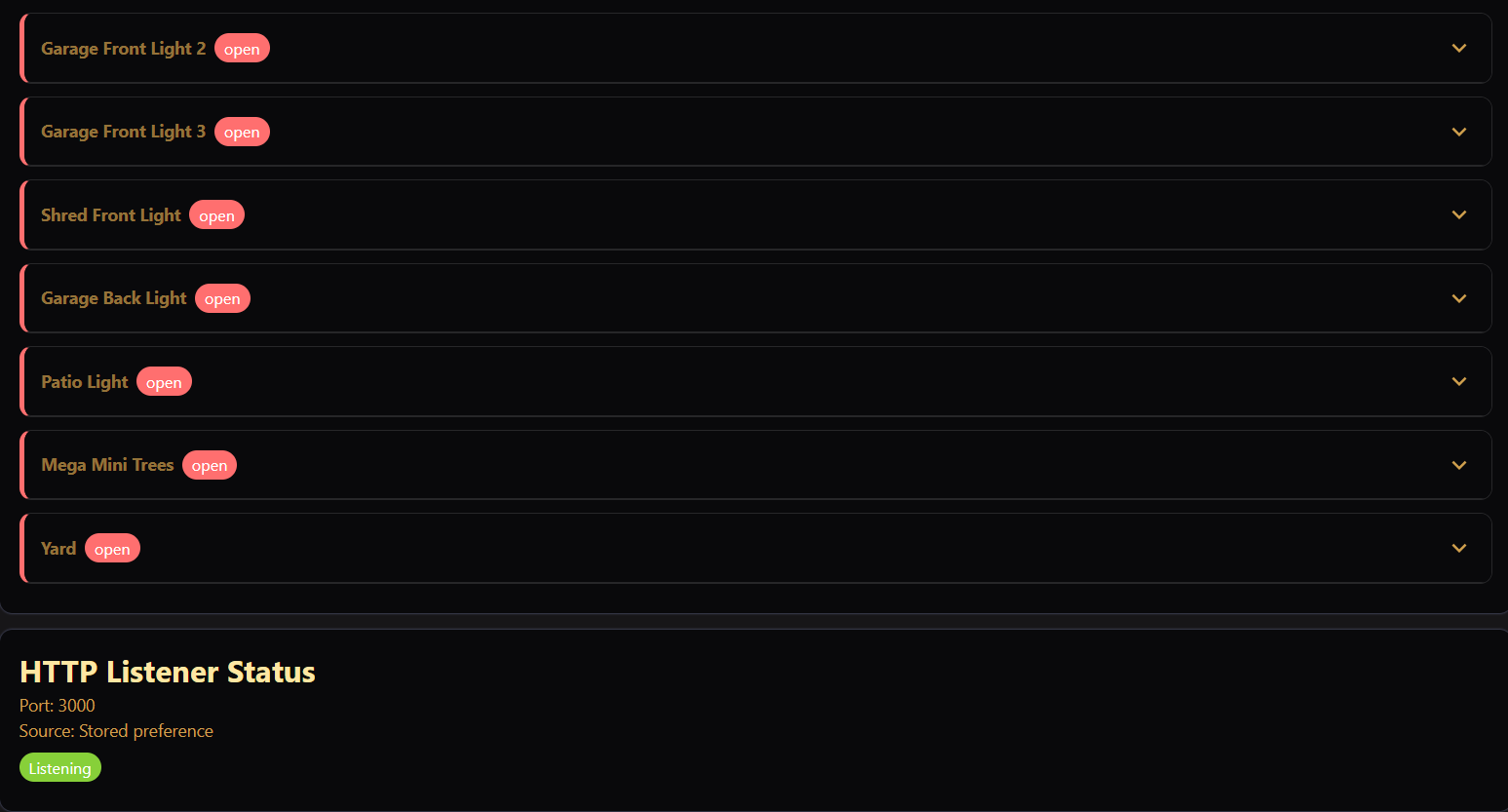
The card refreshes every few seconds and shows three fields:
| Field | Meaning |
|---|---|
| Port | The TCP port the LAN HTTP server is bound to (or attempted). Use this in your browser URL. |
| Source | Where that port number came from — see Configuring the port below. |
| Status | Whether the server is running |
Status values
| Status | Meaning |
|---|---|
| Listening (green) | The server is running. Other devices on the LAN can connect at http://<ip>:<port>. |
| Stopped (grey) | The server is not running (for example EZPlayer is shutting down). |
| Error (red) | The server failed to start or crashed. Check the EZPlayer logs; a common cause is the port already being in use by another program. |
If the preferred port is busy, EZPlayer tries the next ports in sequence (up to
10 attempts). When that happens, Source may note a fallback (for example
Default (fallback from 3000)) and Port shows the port that actually bound.
Configuring the LAN UI port
The main LAN UI port is chosen in this priority order:
- CLI argument —
--web-port=3000(highest priority) - Environment variable —
EZPLAYER_WEB_PORT; see Environment Variables for all runtime variables. - Stored preference — remembered from a previous successful launch
- Default —
3000
Valid ports vary by platform, but are likely in the 1024–49151 range.
Changing the port number requires an EZPlayer restart.
Configuring the Kiosk Port
Configure it the same way as the LAN UI Port:
| Setting | Main LAN UI | Kiosk |
|---|---|---|
| Default port | 3000 | 3001 |
| CLI | --web-port= | --kiosk-port= |
| Environment | EZPLAYER_WEB_PORT | EZPLAYER_KIOSK_PORT |
The kiosk UI can be disabled by setting its port number to 0.
The HTTP Listener Status card on Show Status reports the main LAN port and the kiosk port.
What the server provides
The HTTP listener serves:
- Web UI — the embedded React app (same features as the LAN sidebar in the desktop app)
- REST API —
GET /api/ezp/current-show,POST /api/ezp/player-command, and other endpoints documented in the API reference - WebSocket —
ws://<show-pc-ip>:<port>/wsfor live player status, show data updates, and preview streaming - Health check —
GET /api/ezp/helloreturns a simple JSON message to verify the server is reachable - Controller Proxy — Allows HTTP access to controllers on select networks
No authentication is built into the LAN server — anyone on your local network who knows the IP and port can connect. Keep the show PC on a trusted network or restrict access at your router if needed.
Troubleshooting
Cannot connect from phone or tablet
- Confirm HTTP Listener Status shows Listening on the show PC.
- Use the Port shown on that card in your URL (not an assumed 3000 if it fell back to another port).
- Verify the client device is on the same network as the show PC (same Wi‑Fi or VLAN).
- Check Windows firewall (or similar on other platforms) allows inbound TCP on that port.
Status shows Error
- Another application may be using the port. Set
--web-port=to a free port or stop the conflicting program. - Review EZPlayer logs for
[server-worker]messages.
Quick connectivity test
From any device on the LAN:
http://<show-pc-ip>:<port>/api/ezp/hello
You should see JSON like {"message":"Hello from Koa + Electron!"}.