Getting Started (Local)
Get a show running with EZPlayer in a few minutes.
This version of "Getting Started" is for people who already have xLights and a show folder. If you set up your show in the EZRGB cloud, start here instead.
Before you start
You'll need:
- EZPlayer installed (Windows, macOS, or Linux). See releases.
- An xLights show folder — layout, sequences, and audio EZPlayer can read.
- Eventually you will need your controllers reachable on the network, with lights wired up, but you can skip this at first.
1. Point EZPlayer at your show folder
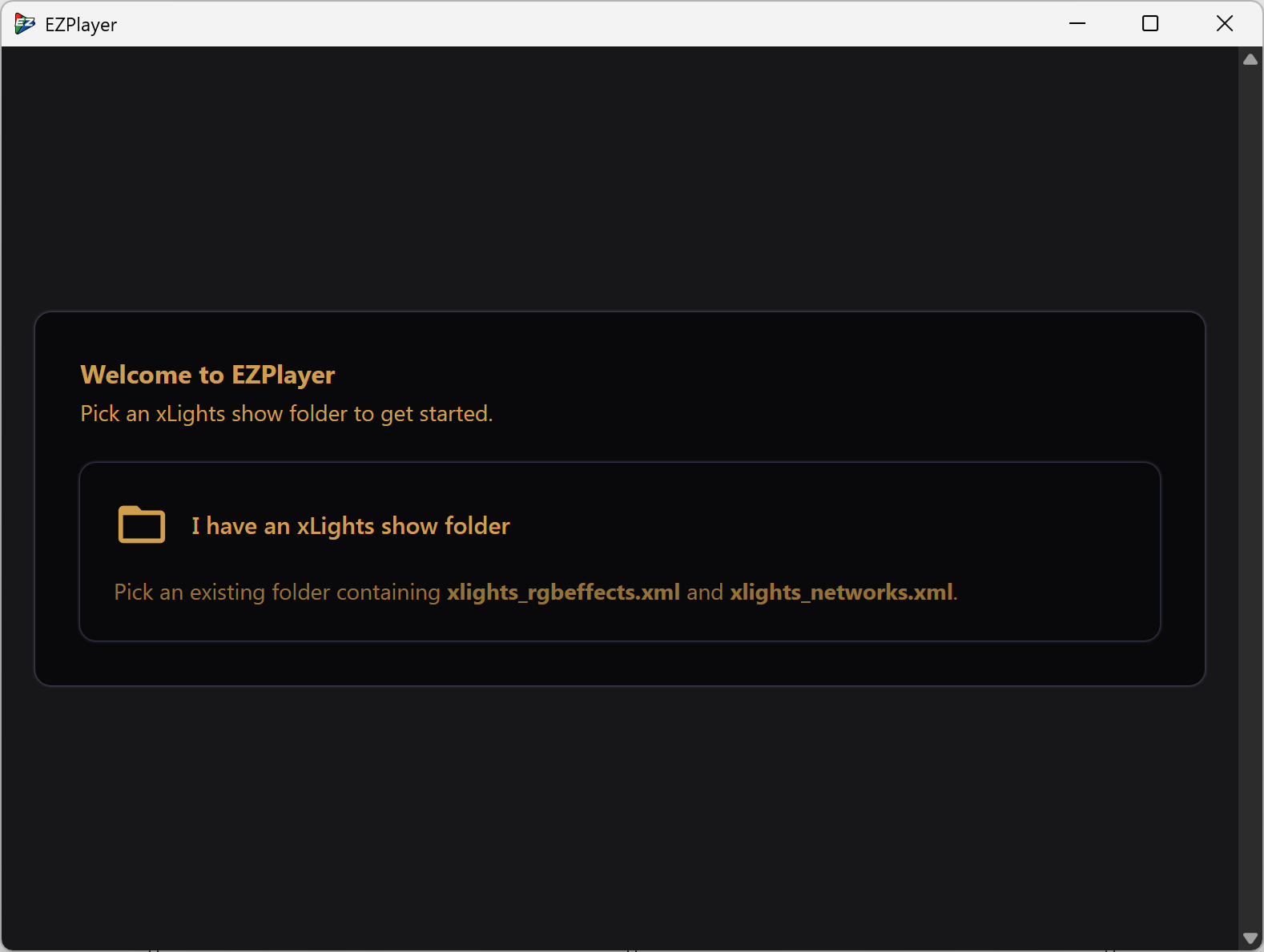
On first launch, EZPlayer asks for a show folder. Pick the same folder you use in xLights. Everything else — sequences, audio, layout — is discovered from there, so there's nothing else to configure to get started.
2. Add a song
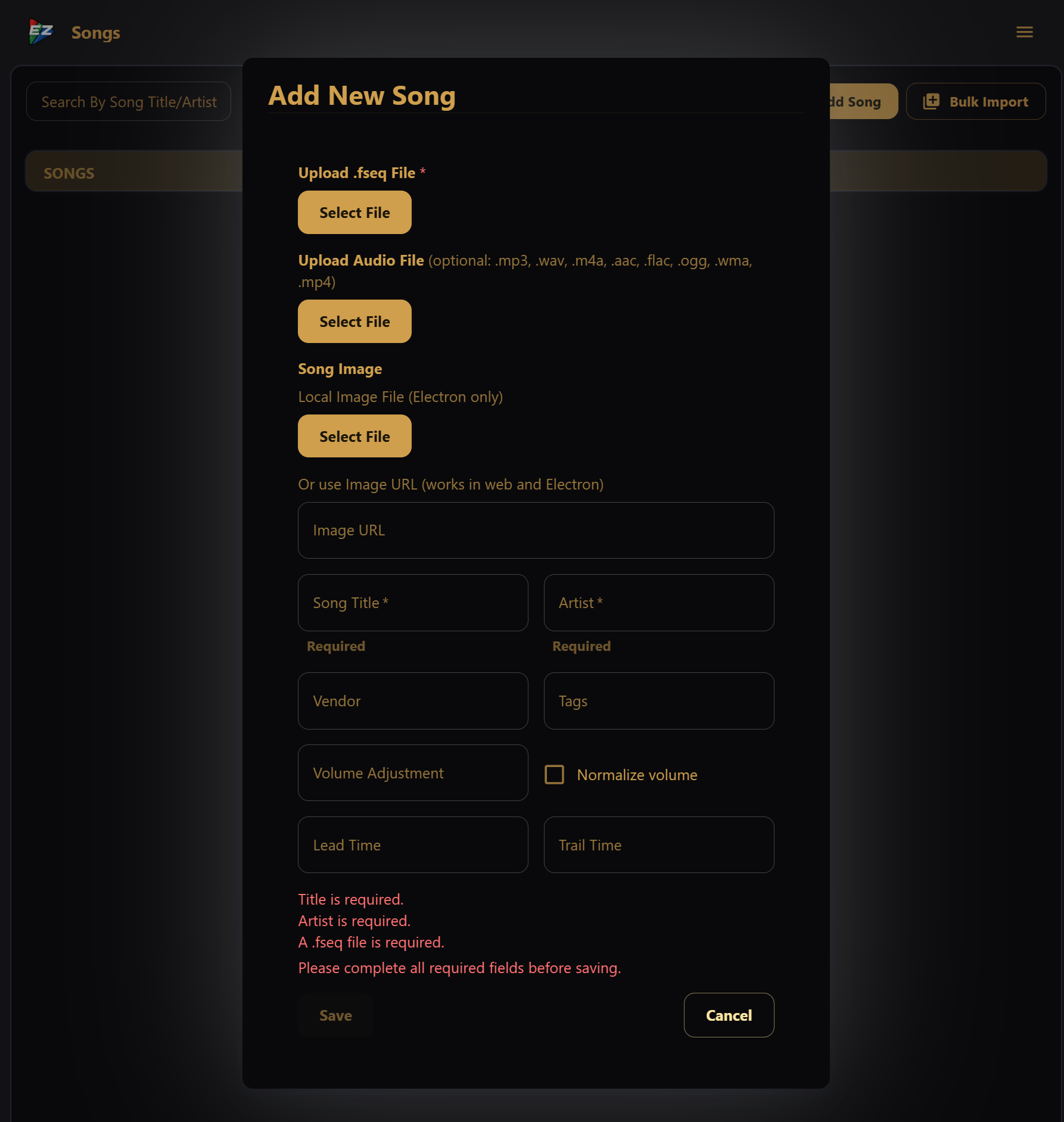
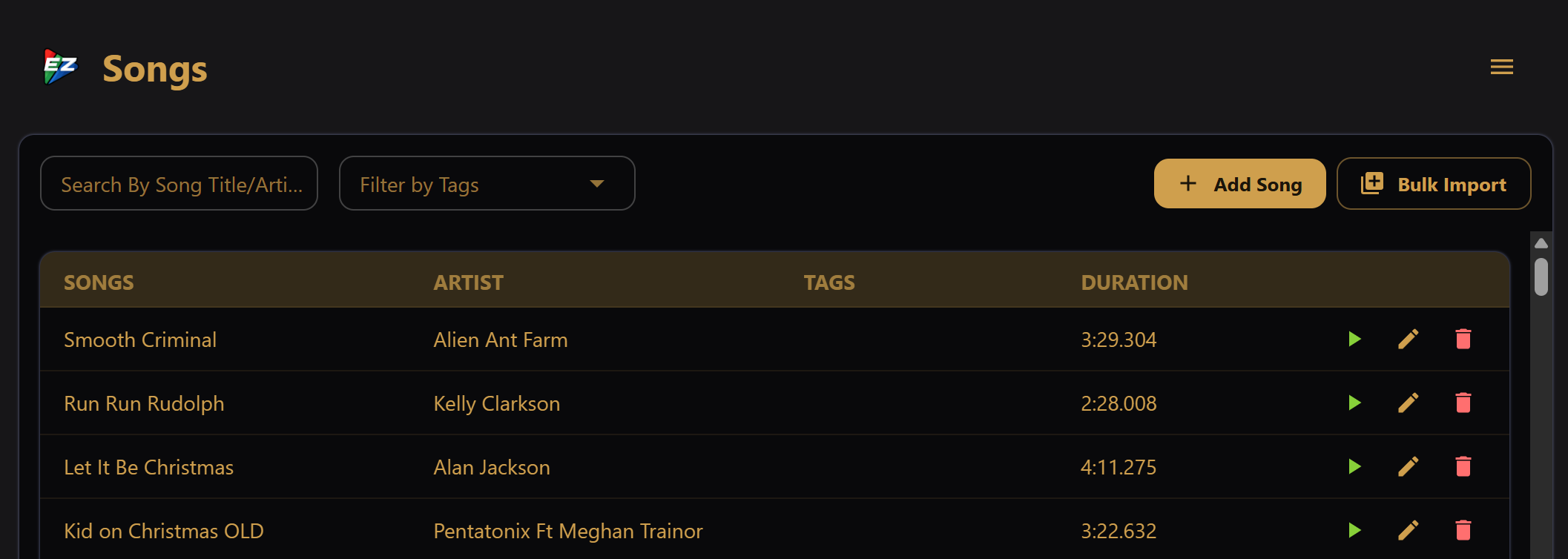
Open the Songs screen and add a sequence, starting with the .fseq. In most cases, EZPlayer picks up the matching
audio and description automatically. If not, fill in the remaining files and details.
Repeat for as many sequences as you like.
3. Play it
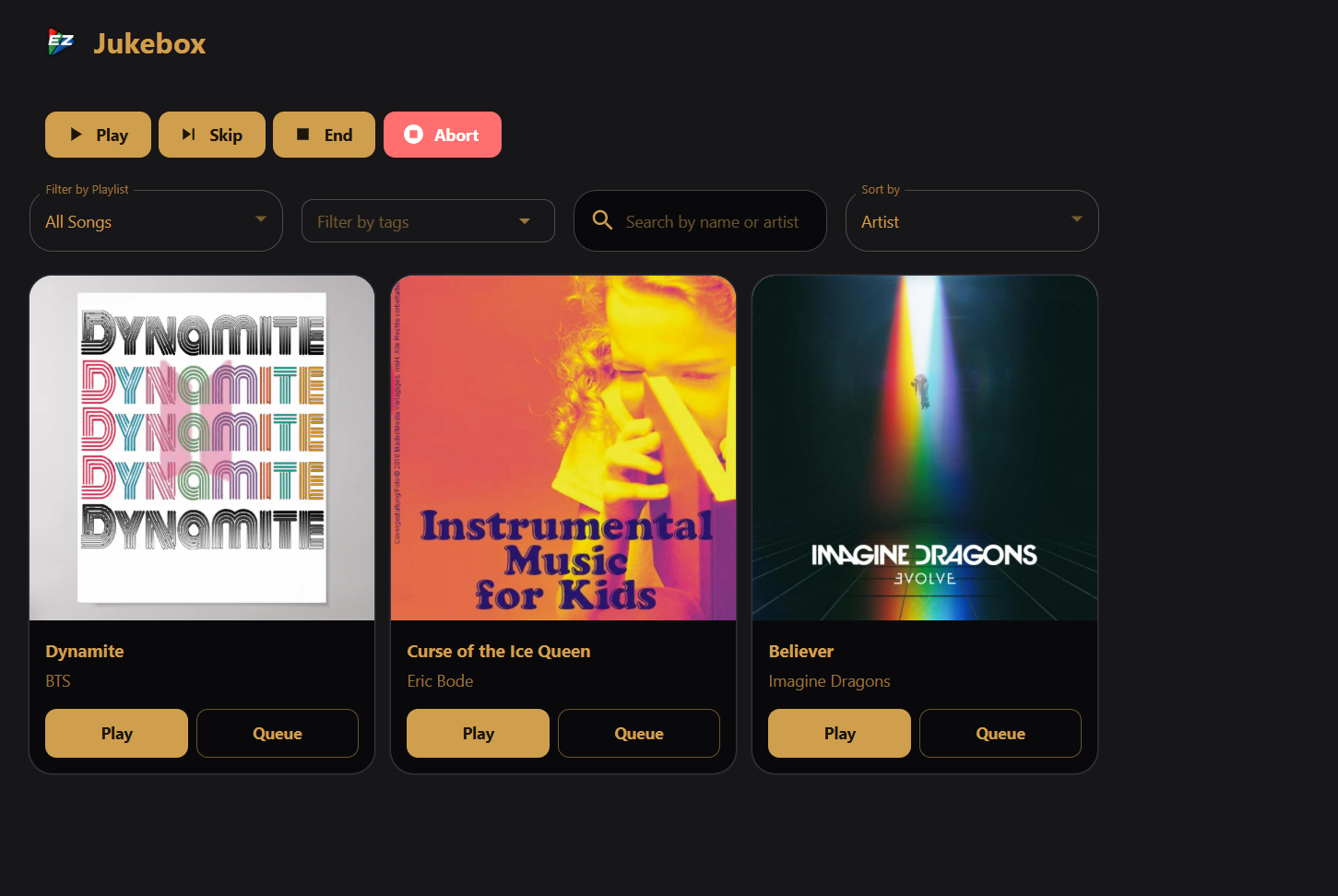
Use the Jukebox to queue sequences and let them run. Want to see it before it hits the real lights? The Show View screen renders the show on screen as it plays.
4. Build a playlist
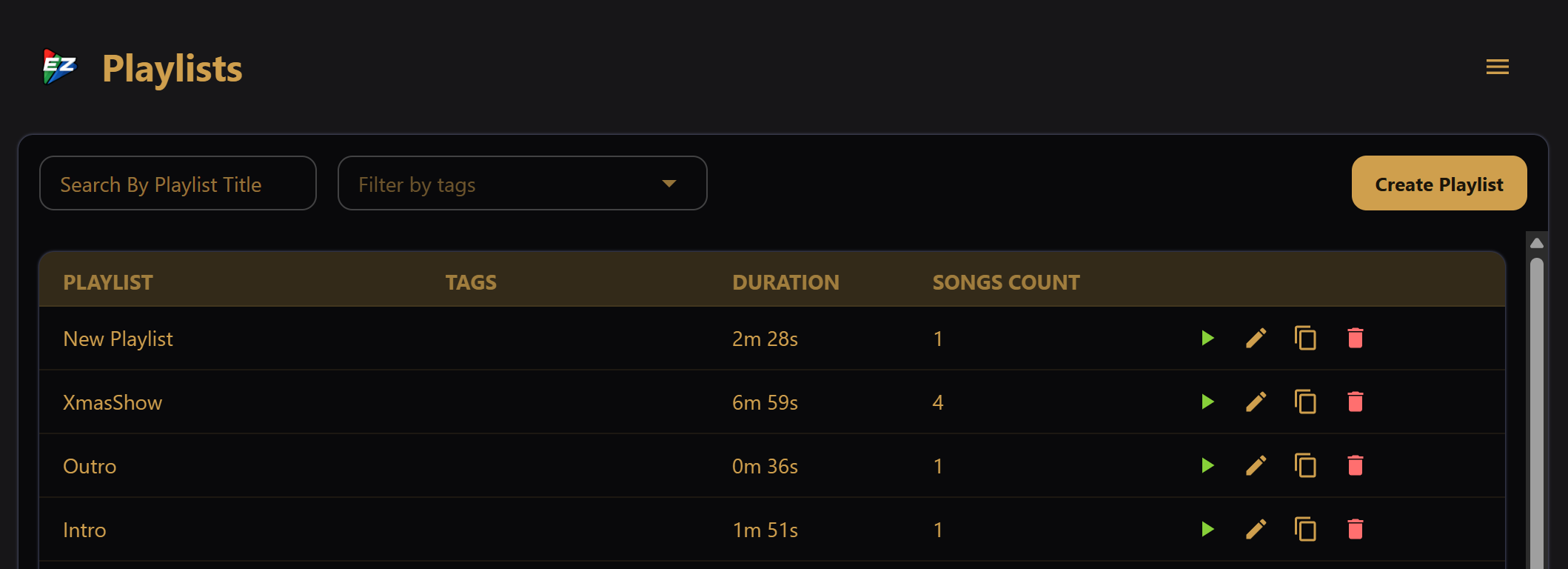
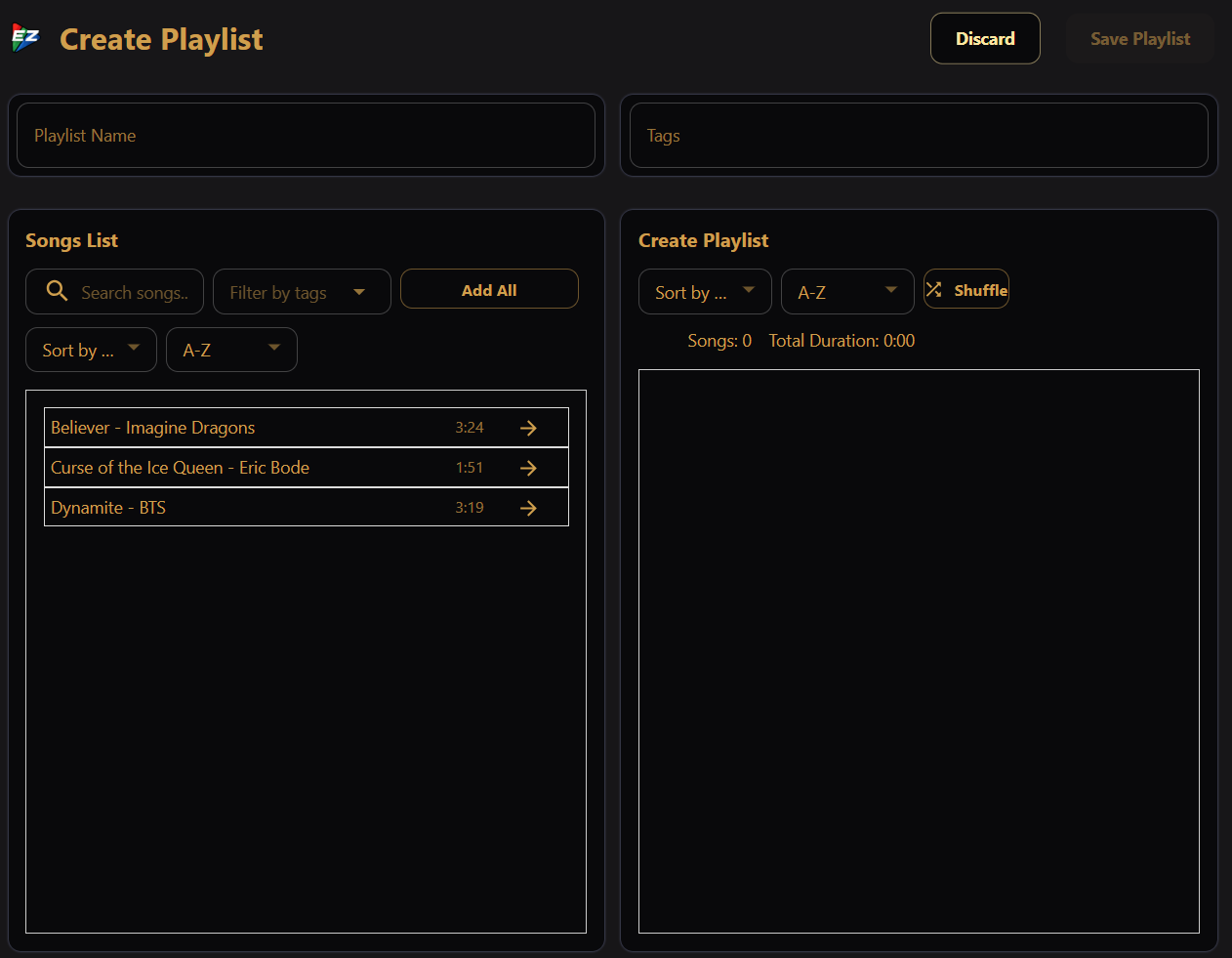
Open Playlists and click Create Playlist. Drag songs from the list on the left into your playlist on the right, set a name, and save. Schedules play playlists — not individual songs — so group your sequences into at least one playlist before you set show times.
See Playlists for sorting, tags, and cloning.
5. Schedule the show
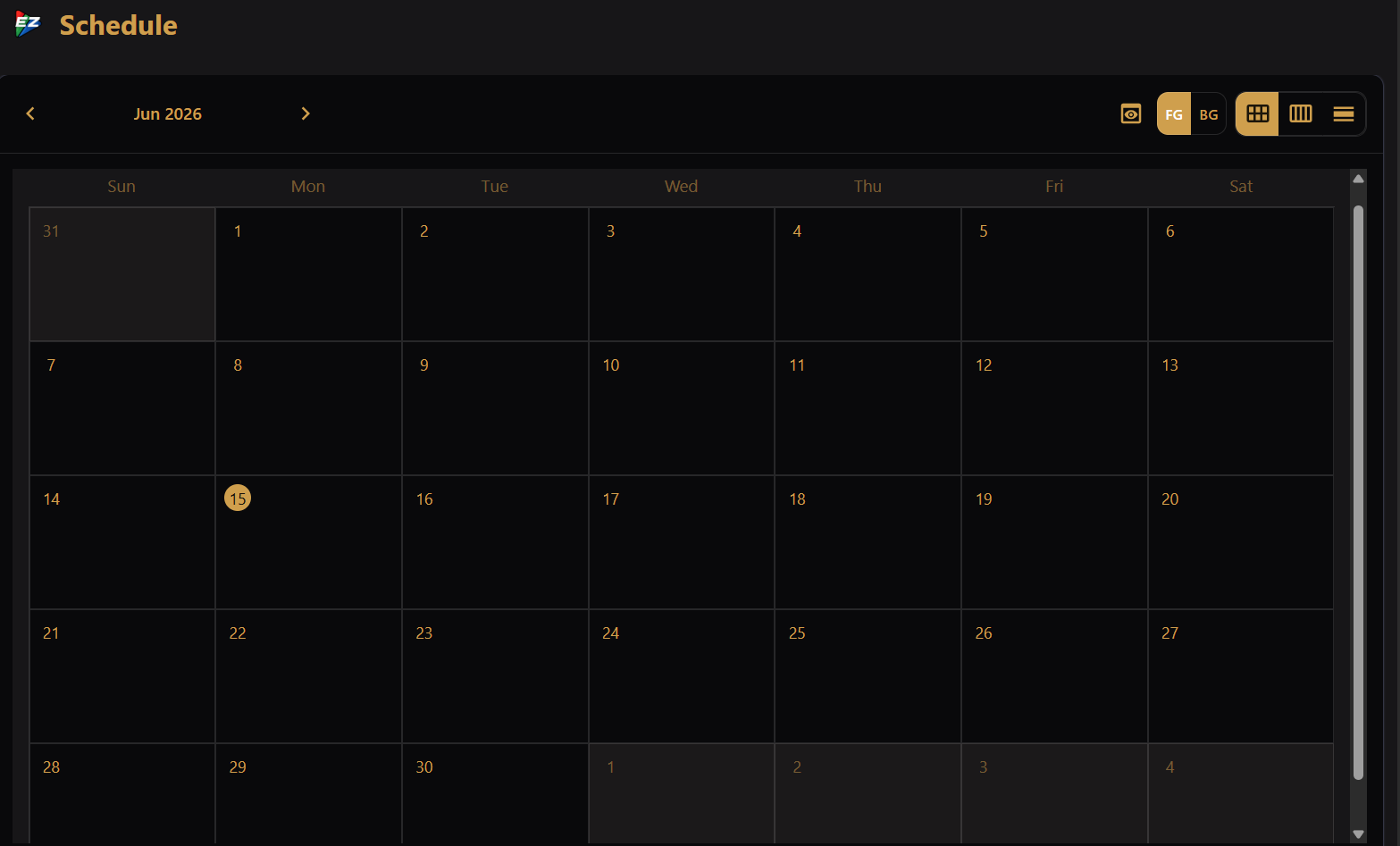
Open the Schedule screen to set when your show runs. Click a date to add a schedule. Choose a playlist, a time window, a date range (if desired), loop, shuffle, and other options.
Once a schedule entry's start time arrives, EZPlayer runs it on its own.
For more on recurring schedules and intro/outro playlists see Simple Schedules. For background layers, priorities, runtime behavior, and previewing a schedule, see Complex Schedules.
6. Drive it from your phone, tablet, or other computers
EZPlayer serves a LAN UI: open the player's address from any phone or laptop on the same network to check status and make changes — no remote desktop, no running back inside to the show PC.
The default port is 3000, but to confirm, open Show Status to see HTTP Listener Status (port and whether the server is listening). See Local Web Interface for URLs, port configuration, and troubleshooting.
7. Add cloud features (optional)
If you start with a local EZPlayer, you can still connect to the cloud later. Connecting your player to the cloud allows you to see status and control the show from anywhere, via the internet, and allows you to create a simple web page for your viewers to visit. When connected to the cloud, your EZRGB sequences are downloaded directly to your show folder.