Show Status — Controllers
The Controller Status card on the Show Status screen tells you whether your lighting network is healthy. The Player screen shows a short summary; here you can drill into each controller.
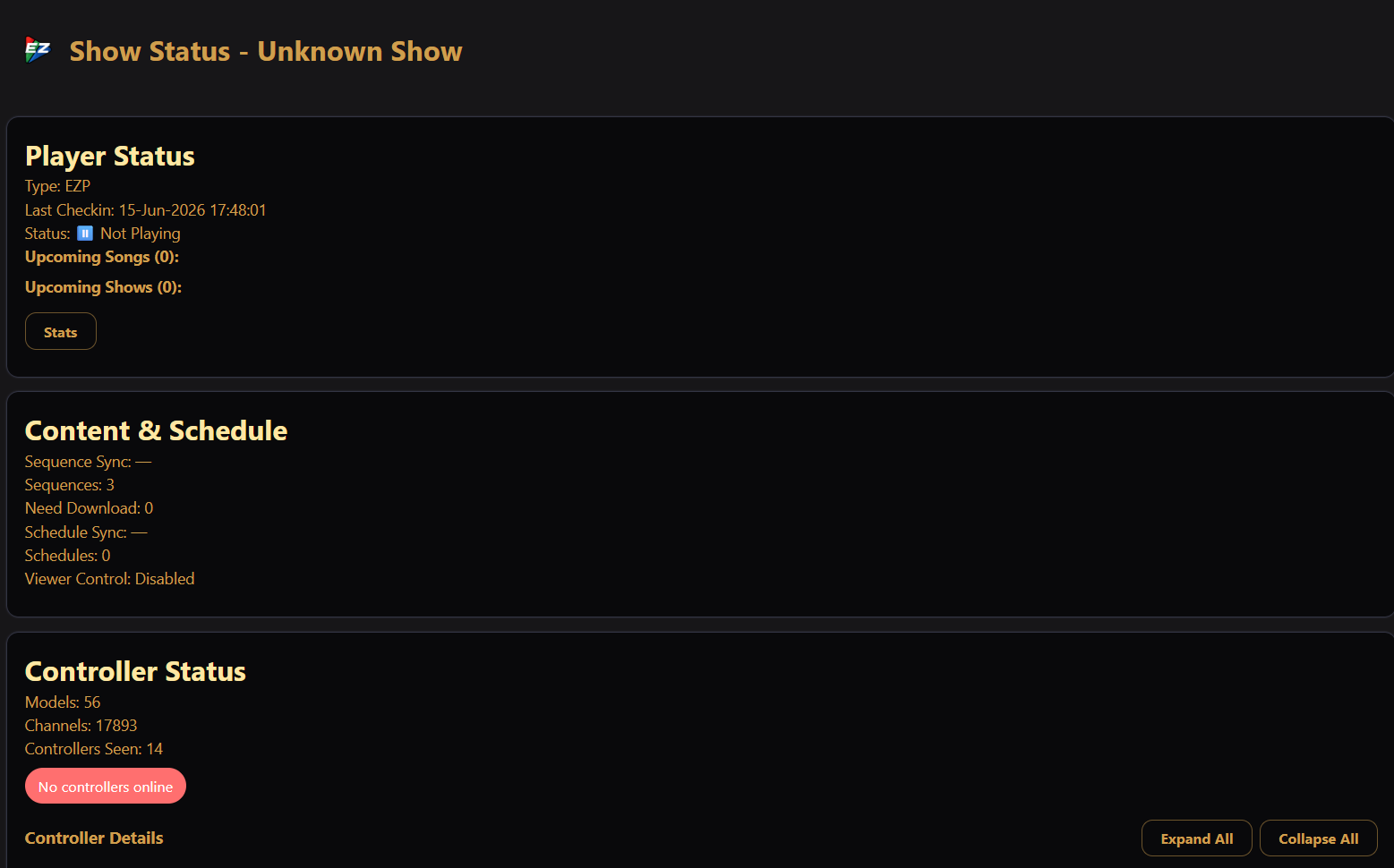
Summary
At the top of the card you see:
- Models and Channels — totals from your show layout.
- Controllers Seen — how many controllers EZPlayer knows about.
- A health chip — for example All controllers online, No controllers online, or N controller(s) offline.
Controller list
Below the summary, each controller appears as an expandable row with its name and a status chip (such as open). Use Expand All / Collapse All to open or close every row at once.
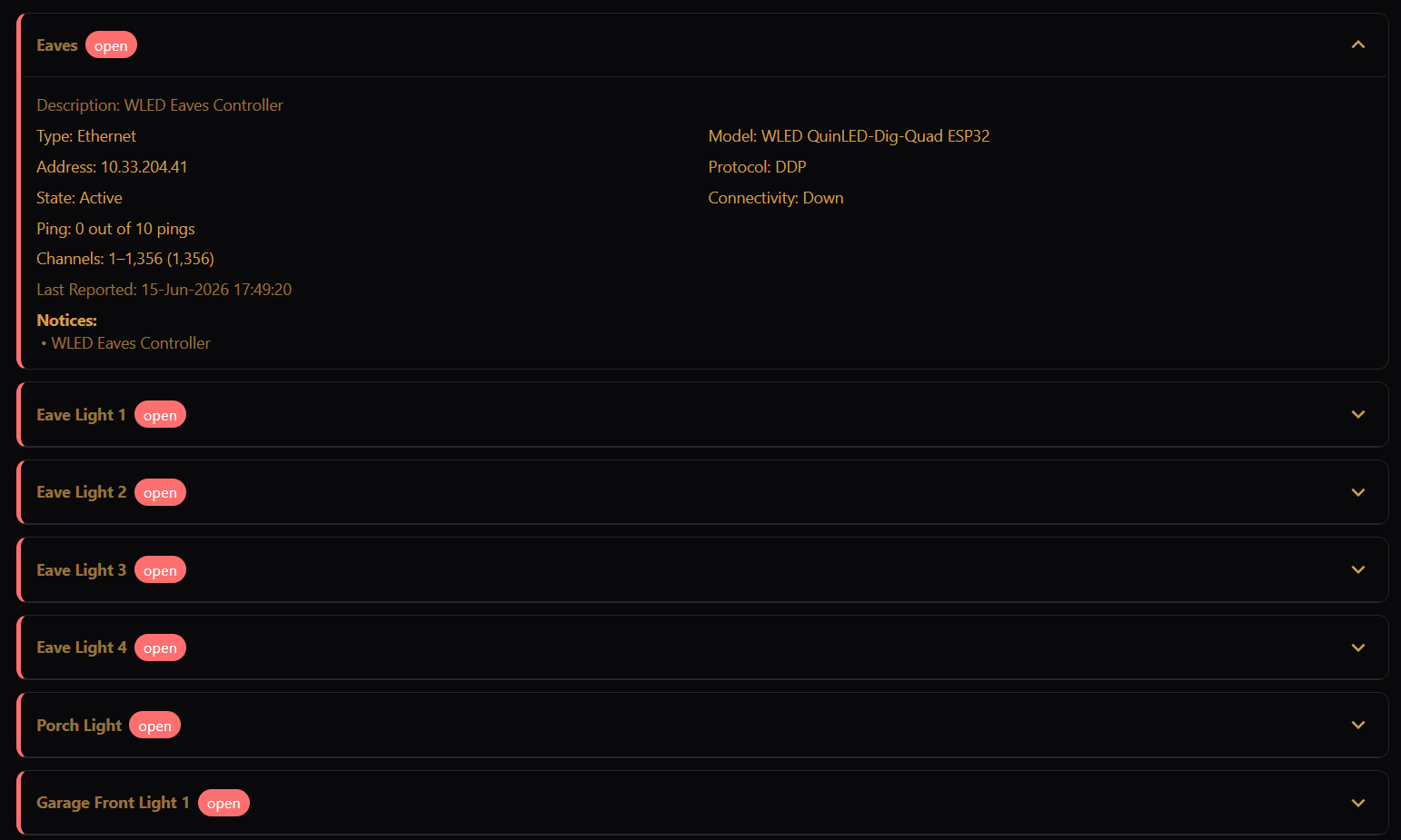
Click a controller to see more, including when available:
- Description and Model — what the controller is.
- Type, Address, and Protocol — how EZPlayer talks to it.
- State and Connectivity — whether it is active and reachable.
- Ping — recent reachability checks.
- Channels — which channel range this controller drives.
- Last Reported — when it last checked in.
- Notices and Errors — warnings or problems to investigate.
A colored accent on the left of each row gives a quick visual cue: green when things look healthy, red when there is a problem, grey when a controller is inactive.
When something looks wrong
If controllers show as offline or report errors, check the basics first: power, network, and that the controller's IP address in your show layout matches the device on your network. The Errors section on a controller row usually points to the specific issue.
For the rest of the Show Status screen (playback, content, and LAN server), see Details.