Controller List
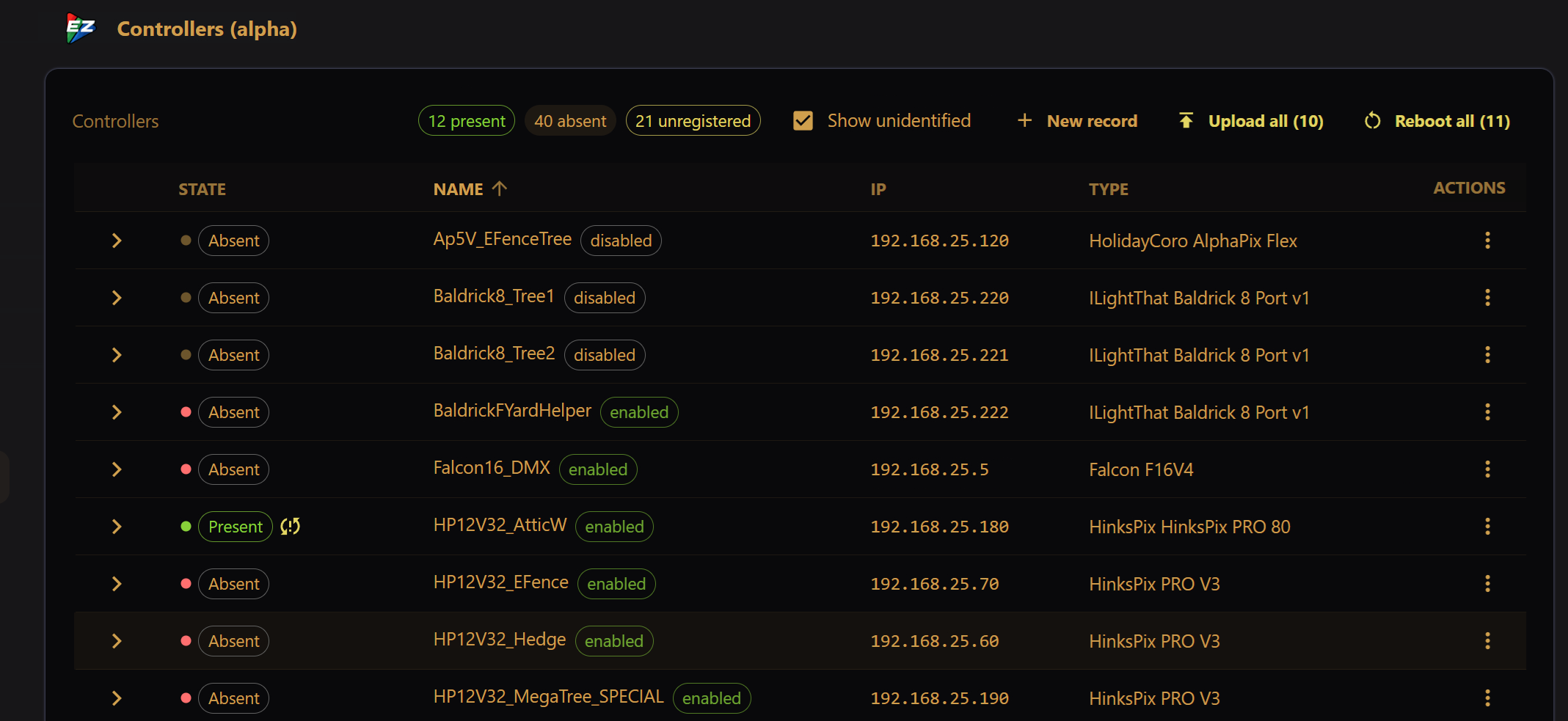
The Controller List on the Controllers screen shows a combination of all configured and detected controller devices.
Above the table, the title row shows a summary of controller status next to the everyday commands:
- Refresh all re-reads the details of every Present controller. No network scan is needed — it asks each controller that is already known to be on the network.
- New record creates an EZPlayer controller record by hand.
The toolbar below it holds the view options on the left ("Show unidentified": when checked, network devices that are not known to be controllers are shown in the table) and, on the right, the bulk device actions that apply to all present controllers ("Upload all" and "Reboot all"), offered if applicable.
Below this is a table with records for each network device / controller:
- Clicking the headers allows sorting of the table
- Each row shows the state, enabled state, name, IP, type, and frame-rate cap ("Max FPS") for a network device
- For devices with details, a foldout icon is available on the left end of the row
- For devices that allow actions, a "kebab" menu is available on the right end of the row
Max FPS
Some controllers cannot keep up with the show's frame rate. The Max FPS column shows the frame-rate cap in effect for the controller. Use Edit record to set or clear the override; it takes effect the next time the show output is (re)started.
Status / Terminology
Enabled / Disabled
Enabled  means that the controller is configured for sending live data as part of the show; Disabled
  means that it is not. The controller is usually disabled by marking it as "Inactive" in xLights.
Red / Green / Unlit
Red  / Green
  / Unlit
  status light - Unlit means the controller is disabled. Green indicates that the controller is responding to pings. Red means no ping response.
Present / Absent / Unregistered
A Present  controller is enabled in the controller configuration and is responding to pings. An Absent
  controller is in the configuration but is not responding. An Unregistered
  controller was found during network scan only, and may be responding to pings, but is not in the configuration.
Warning Alert
A warning  indicator is presented when a controller needs attention. Hovering or expanding the controller details will reveal more about the warning.
Controller Details
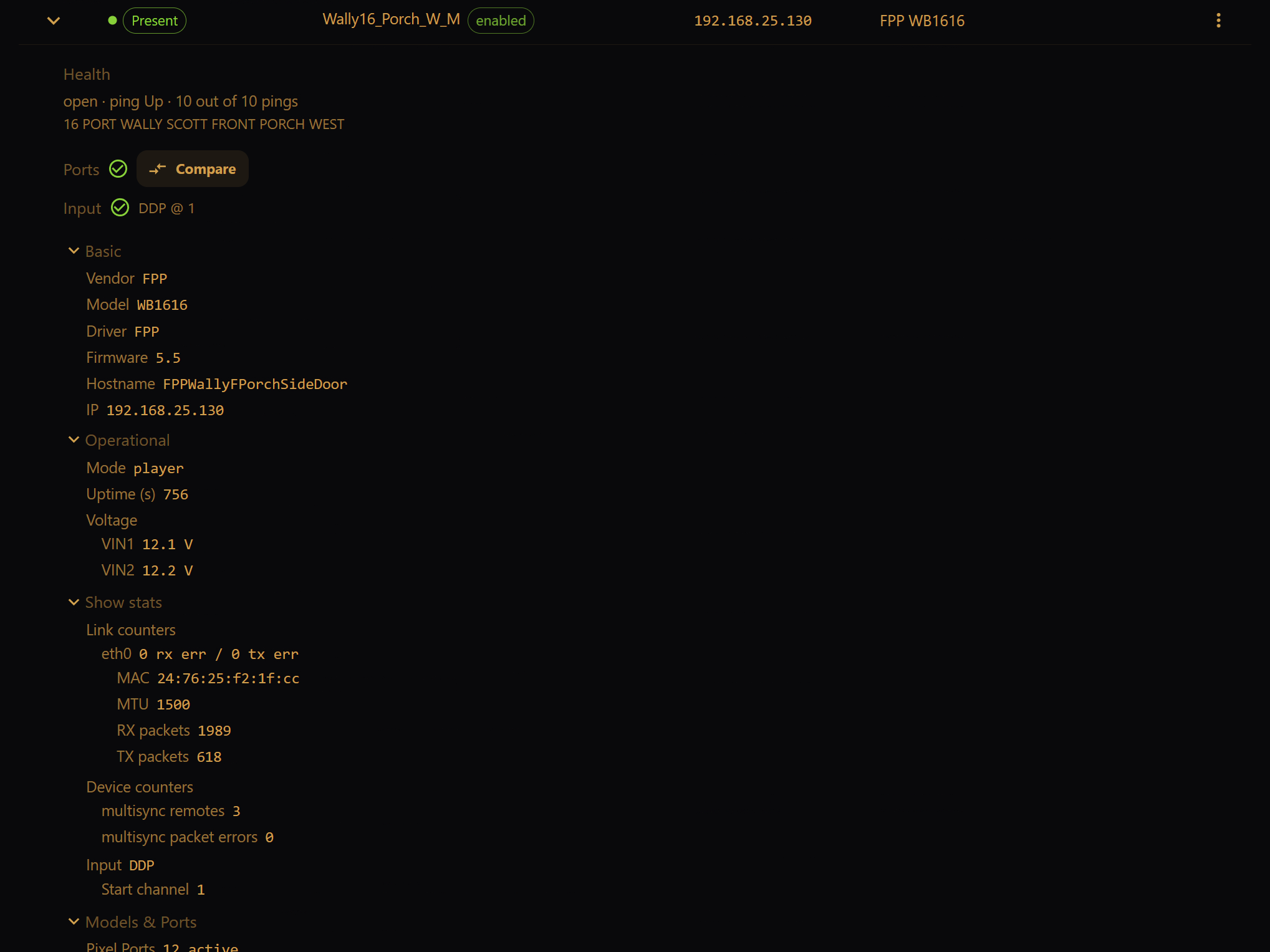
The availability of details varies by controller vendor, model, and installed firmware. See the support matrix for a summary.
Refreshing controller details may be disruptive, and is not done automatically. Be sure to refresh the controller details for the latest information from your controller.
Health
This section reports high-level health and a description of the controller. It also indicates whether the controller's input and output maps match the player configuration.
Basic
This section provides information about the device type, network address, and installed firmware.
Operational
This section provides modes, uptimes, voltages, temperatures, fan speeds, etc.
Show stats
This section includes network and protocol information for the controller.
Models & Ports
This section details the controller's configured pixel ports and models. Note that this is the controller's information; the Compare option at the top can be used to compare the configuration to that in the port map.