Schedule Preview
Use Schedule Preview to see what the player will actually do over a chosen time range before show night. It walks through your schedules using the same options you set on each entry — loops, shuffles, priority, and end-time behavior.
Opening Schedule Preview
On the Schedule screen, click the preview icon in the toolbar to open Schedule Preview.

Preview settings
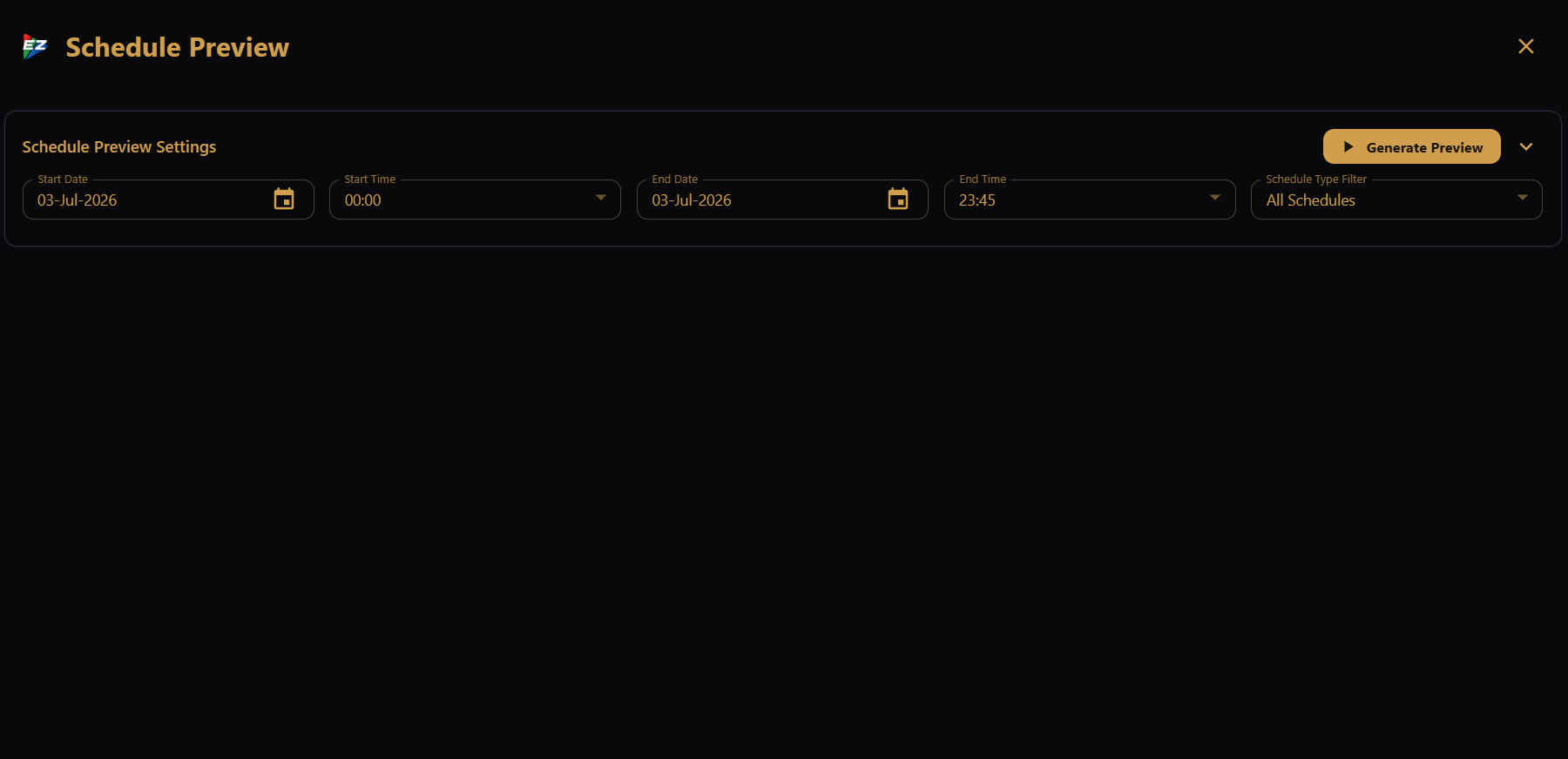
At the top of the preview, set the range you want to check:
- Start Date and Start Time — when the preview should begin.
- End Date and End Time — when it should stop.
- Schedule Type Filter — show All Schedules, Main Schedules Only, or Background Schedules Only.
Generating the preview
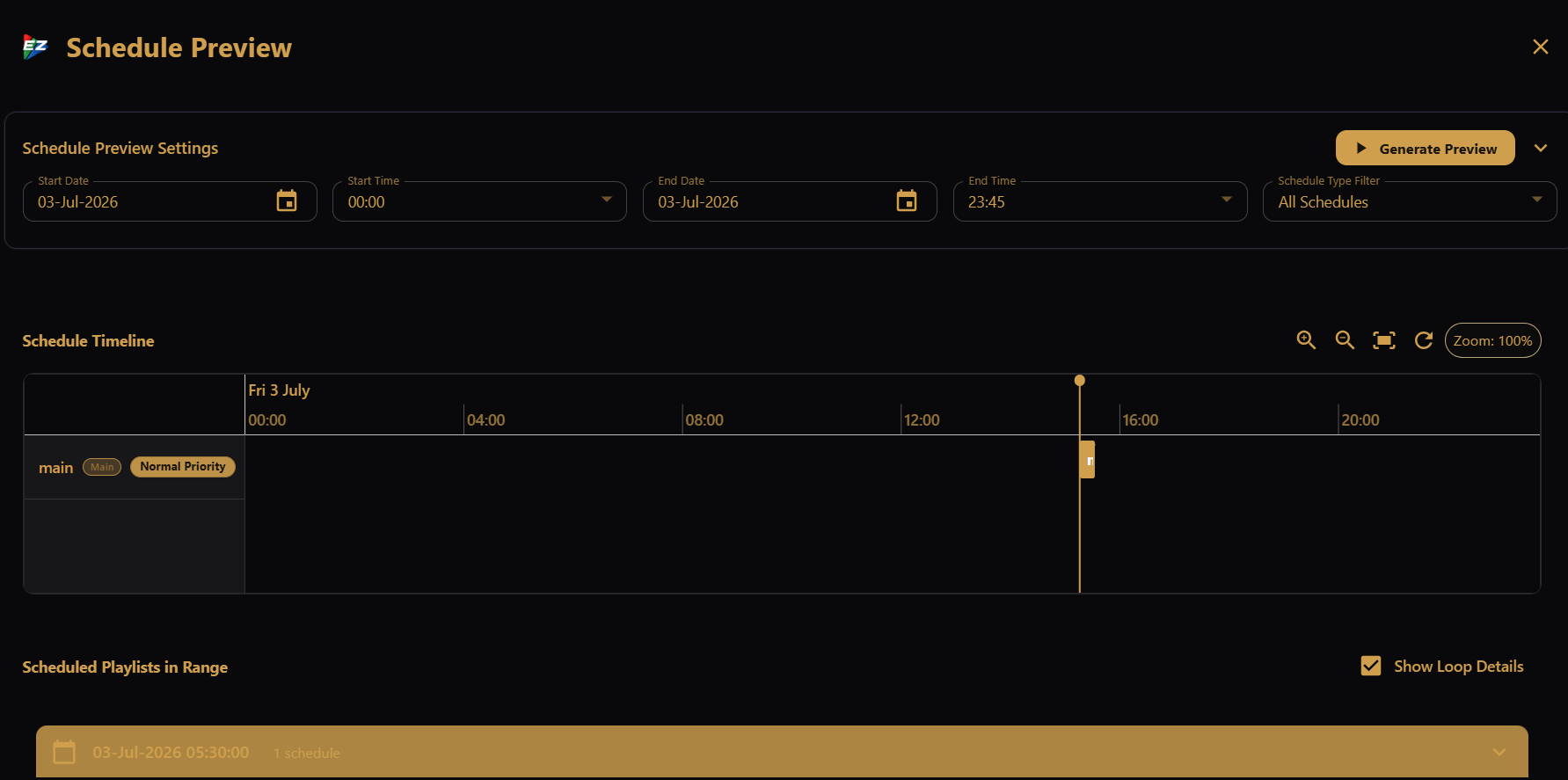
Click Generate Preview. EZPlayer builds a timeline of what would play during that window, including how priority conflicts, loops, shuffles, and intro/outro timing play out.
If you have not set up any songs, playlists, or schedule entries yet, the preview cannot run — add those first on the Schedule screen.
Reading the results
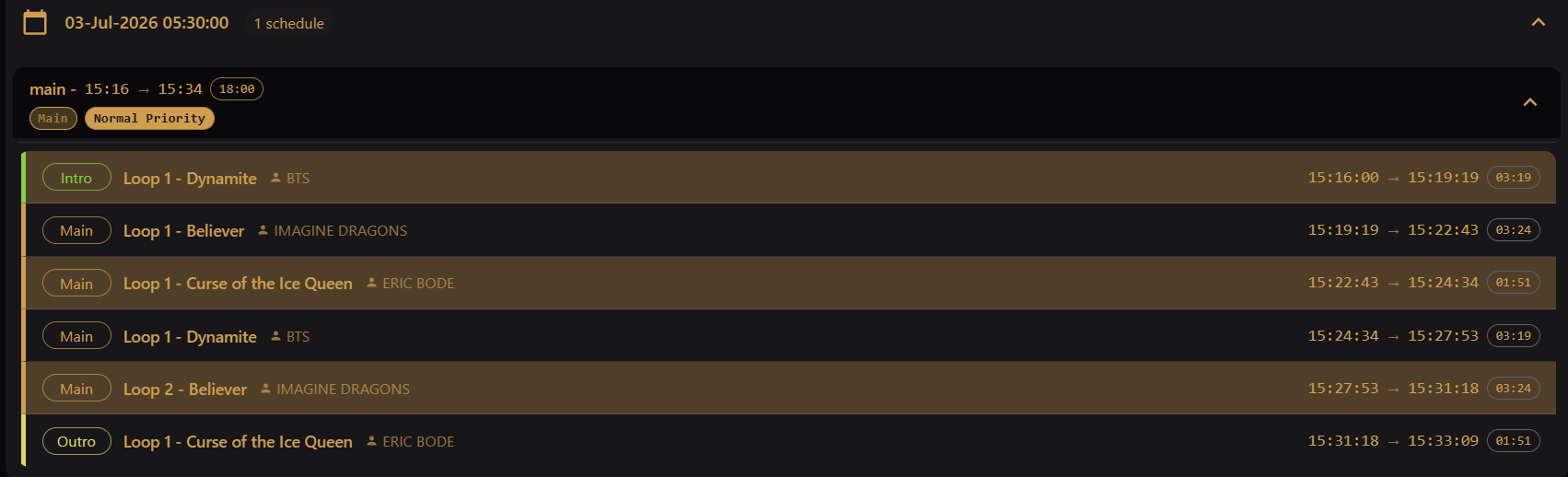
The timeline shows each scheduled show in order. Click an item in the timeline to jump to its details below. This is the easiest way to catch surprises — such as an overlap you did not expect or a window ending mid-song — before the lights go on.
For multi-day checks or testing across a custom date range, widen the start and end dates and generate again.