Background Schedule
Most show content lives on the Main schedule — this is what drives your foreground lights and audio. A Background schedule runs a second playlist at the same time, layered together with the main show. Use it for always-on elements such as informational loops (tune-to, parking, viewer control info) or ambient effects.
Creating a Background Schedule
In the schedule editor, use the FG / BG (Main / Background) toggle at the top to switch to a background entry.

A background entry has the same options as a main one — time window, intro/outro, loop or shuffle, priority, and end-time behavior.
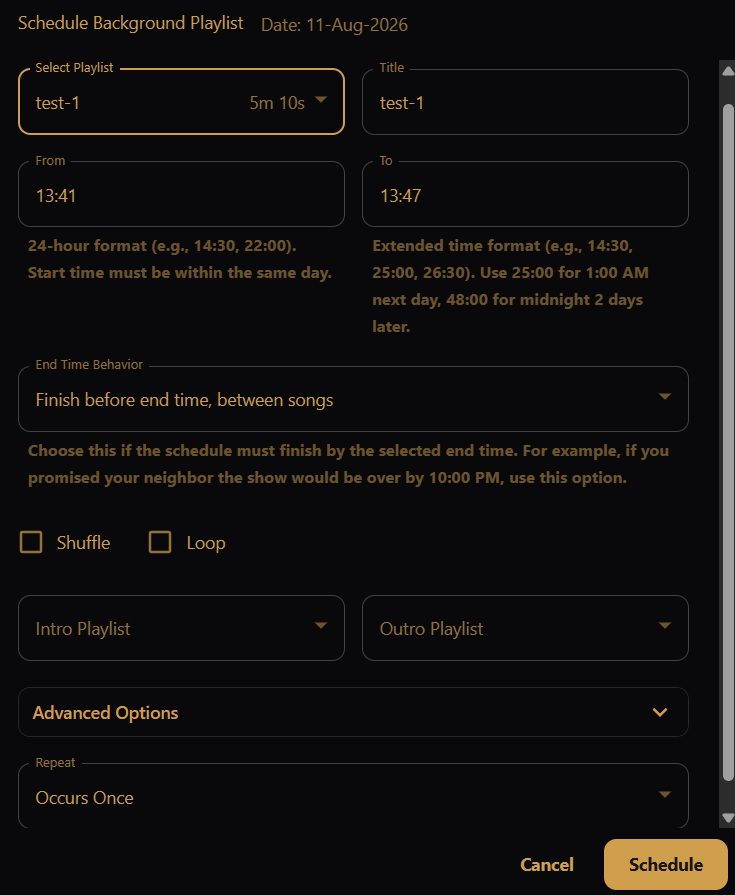
The key difference is that a background schedule never replaces the foreground show. It always plays alongside main, layered over or under it.
Overlay vs Underlay
Versions 0.6 and earlier present this setting but ignore it, opting to blend the two schedules.
A single blend mode decides how background content combines with the foreground for the whole player:
- Overlay — background pixels sit on top of the foreground.
- Underlay — background pixels sit beneath the foreground.
You set this with the Background Sequence option on the Player tile of the Settings screen.